Frequently Asked Questions
In the FAQy, you find answers to frequently asked questions. In case additional questions occur, please, contact the support.
Overview FAQ
- Cloud Memory occupied
- Files cannot be opened/edited in OnlyOffice or the document is displayed incompletely
- Copying the entire folder into the Unibox
- Simultaneous editing of Office documents in the browser
- I am leaving the University of Rostock - what happens to my data? What do I have to do?
- Link sharing time limit
- No plus symbol / no data upload via upload form link
- Can conflicts arise during file synchronization?
- Enable Logging in the client
- My desktop client was unable to verify the SSL certificate chain. What can I do?
- mobile Apps
- Using the Unibox client on the terminal server
- OnlyOffice does not support old MS OFfice formats
- Folder and file names with special characters
- Folders disappear after a user account expires
- Proxy settings
- Save documents with OnlyOffice and download documents
- When do I need a client?
- Which data should not be synchronized?
- Which file types are not synchronized by the desktop client?
- How do I change the language?
- How can I restore a specific file version?
- How can I delete my Unibox account?
- How much storage space do I have?
- Access with Internet Explorer
- Two useras on one PC
Contact
Albert-Einstein-Straße 22
18059 Rostock
Josephin Tschakste
Tel.: +49 381 498-5347
unibox.support(at)uni-rostock.de
Cloud Memory occupied
In case the memory is fully utilized, the user gets an email that informs him/her about the too high memory utilization. In some cases this information will be send even if the user uses less than the available 100 GB. This problem occurs resulting from the stored file version which must be deleted to release memory.
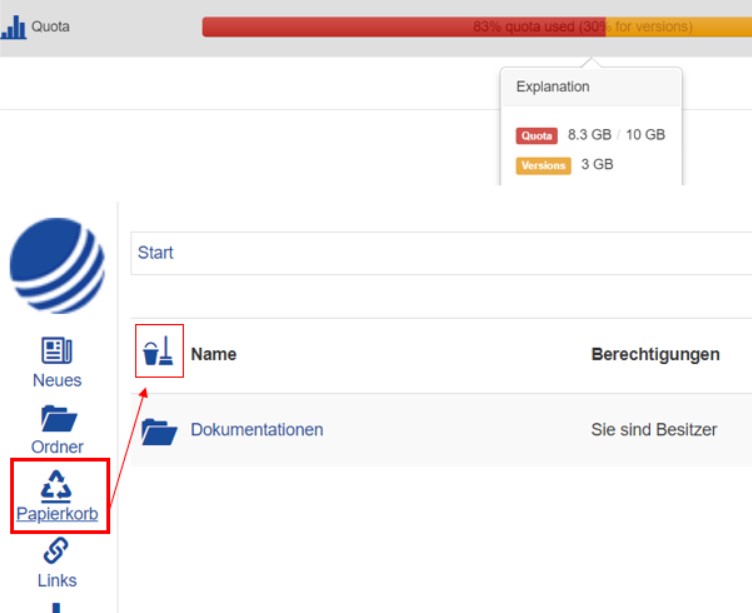
If you use the Unibox Rostock service exclusively via the web, the file history will only be deleted there. You can see the utilization of the quota and the used storage under "My Account". The file versions can only be deleted under "Recycle Bin" or "Versions". With the button "Purge" you delete all files under versions. Alternatively, it is possible to restore files from the individual folders over it.
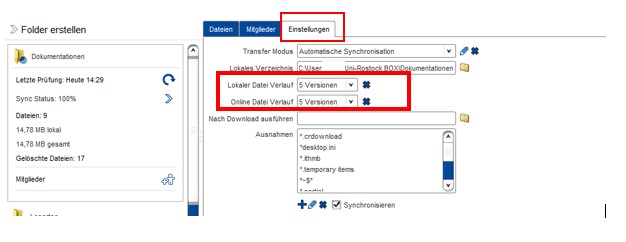
In case the Unibox RostockClient is used, both, the online file course and the local file course can be deleted. It is to be found in the relevant folder under “Settings” > "Local file course"/"Online file course". The latest existing file course for the selected folder is deleted with the adjoining cross-button. However, we advise against deleting the local file history.
Please note that this will allow you to delete the previous versions of the documents and not return you to an older version of the file. Therefore, delete the file history only if you definitely do not need to access any previous version.
In the web surface:
In the client:
Files cannot be opened/edited in OnlyOffice or the document is displayed incompletely
In some cases, large documents cannot be opened and edited in OnlyOffice, or only part of the document is displayed.
This problem can occur if the document is larger than 100 MB and contains a large number of images and graphics, or if the maximum file size allowed in OnlyOffice is exceeded.
If your document contains images and graphics, please reduce their size to minimize the file size. This also applies to backgrounds used in documents and presentations.
Copying the entire folder into the Uni Rostock Box
In case a folder with all its content and structures (subfolders included) shall be copied to the Uni Rostock Box, this is, unfortunately, not possible via the web surface. Only the content of the superordinated folder are copied in the web surface, but no subfolders. To enable you to also copy additional structures of the folder, we recommend to solve this via the desktop client.
Proceed here as follows:
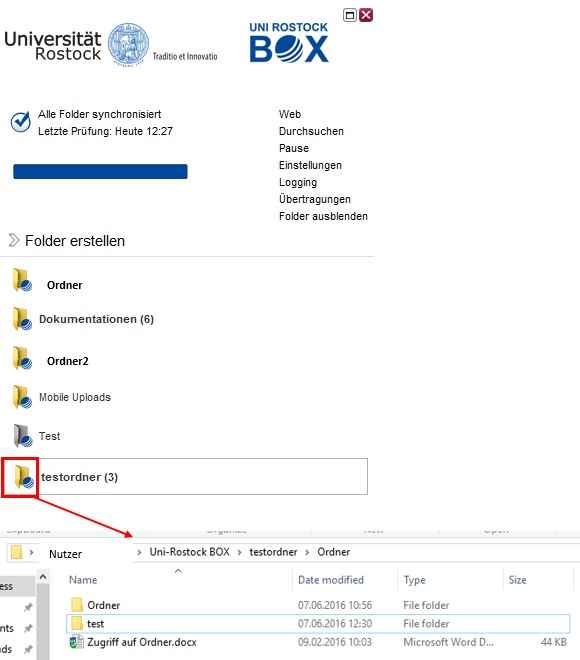
After installing the client, please, start it. All folders you have already stored are displayed on the left margin. Create a new folder or use an existing folder for the data you want to copy.
If you click on the folder symbol of the corresponding folder in the client now, this folder will open on your computer. Here, you have the opportunity to copy the entire folder plus all content and structures. This structure will be accessible from the web as well as from other clients then.
Simultaneous editing of Office documents in the browser
Unibox offers the option of editing Office documents online in a web browser together with several other people.
The Weboffice Suite ONLYOFFICE is used to provide this functionality.
The following file types are currently supported: *pptx, *xlsx, *docx, *txt, *rtf, *epub, *csv, *xps, *odp, *odt, *ods
Please note that conflicts may arise when working together on a document using a combination of web editors and local editing with desktop editors. Please coordinate with each other when editing together.
For more information on collaborative editing, please refer to the user manual.
I am leaving the University of Rostock - what happens to my data? What do I have to do?
As soon as you leave the University of Rostock, your data in the Unibox will be deleted in due time. If you are the owner of one or more folders which you share with other university members, please hand over the ownership rights to another folder member before leaving the University of Rostock.
Please note that this user must accept the invitation as owner of the folder, only then the data is transferred. If this user does not accept the invitation until your account is deleted, the data will be deleted
Instructions on how to transfer ownership of a folder can be found HERE.
Link sharing time limit
When you create a link to a folder or file, it has a default validity period of 30 days.
You can extend the validity period of the link to up to 5 years in the link settings.
The validity period of links is limited for security reasons. If the links were to have unlimited validity, they could quickly be forgotten and data could fall into the hands of unauthorized third parties.
Instructions for adjusting the validity period can be found in the user manual.
No plus symbol / no data upload / no upload via upload form link
After logging in, there is no “plus” symbol in the Unibox for creating folders, or nothing can be uploaded to existing folders? You cannot upload data to an upload form via an upload link?
Please check whether you have an ad blocker or other browser plugins that are preventing access.
Alternatively, start your web browser in incognito mode or use the terminal server.
Another reason may be that you do not have any storage space in the Unibox (e.g. because it is an external account).
Can conflicts arise during file synchronization?
When collaborating on files with multiple people (or with multiple devices), conflicts may arise during synchronization in some situations.
For example, when working on a file with two or more people, the person who saved the file last “wins.” Synchronization starts as soon as the file is saved.
Conflict resolution
When such a conflict occurs, the client keeps a copy of the version that is saved in the file archive so that nothing is lost. The overwritten version can be restored from the file archive.
To do this, select the file and click the “File history” or “Restore” button and select the appropriate version.
Alternatively, you can also open the directory where your data is synchronized in File Explorer and add “.PowerFolder\archive” to the path in the top-level folder.
The complete path would then look like this, for example: C:\Users\username\Unibox Rostock\Folder\.PowerFolder\archive
If you have any questions or problems, please contact Unibox Support.
Enable logging in the client
To ensure a fast problem solution in the event of a fault, we recommend activating the logging in the client.Logging is activated in the client's settings.
Enable logging:
- Start the client
- Open the settings
- Select the check box "Activate logging"
The current log file can then be viewed in the client, as other log files are displayed locally on the PC.
My desktop client was unable to verify the SSL certificate chain. What can I do?
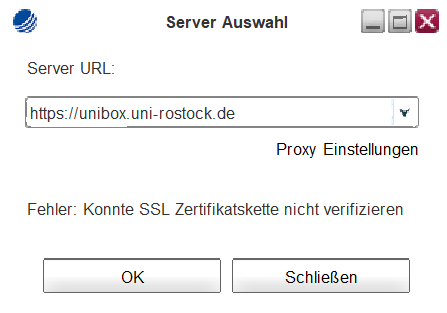
Due to a server-side certificate change, older desktop client versions may display the error message “Could not verify SSL certificate chain.”
The latest desktop clients are available on the Unibox website. Please update your desktop client to at least version 23.3.100.
mobile Apps
The mobile app for Android is already available in the Google app stores (since 18.10.2018).
The mobile app for iOS is now available in the new design in the Apple App Store (since 01.07.2019).
Under Android 8 it came in an older version to functional restrictions in the mobile app. This was fixed in the version of 24.09.2019.
If you still can not upload files in the Android app, please check the permission settings of the app.
Open the settings of your Android smartphone and go to the installed apps. Look for the "Unibox Rostock" app in this list and open the settings menu. Select "Permissions" or "Permissions" and enable access to the memory of your smartphone. Then work with the mobile app should work on Android.
Using the Unibox client on the terminal server
Using the Unibox client on the terminal server
The desktop client of the Unibox can not be found on the terminal server, as it is not recommended to use the client on terminal servers. The client monitors the base data path. If you use the client on the terminal server, the base path is monitored by several clients, provided that you also use the client on your computer in the university. This will write to and delete from the same directory. In the worst case, this can lead to data loss.
OnlyOffice does not support old MS Office formats
It is possible to open and edit Microsoft Office or Libre Office documents with OnlyOffice. Please note that only the new MS Office formats are supported. The DOC / XLS / PPT formats (MS Office 2003) are not supported.
Folder and file names with special characters
When assigning folder or file names, please, consider that only permitted special characters must be used, if necessary.
In case you use inadmissible special characters, this may result into problems in the web browser and in the client. The inadmissible characters are reserved for the internal operation system / internal purposes and accordingly should not be used. This includes: \ / ? : * " > < |
Folder and file names can contain a dot ("."), but the name must not start with a dot!
Folders disappear after a user account expires
As soon as you or a folder owner leave the University of Rostock, the data in the Unibox will be deleted in a timely manner when the central account is deleted.
If you are the owner of one or more folders that you share with other university members, please transfer ownership rights to another folder member before leaving the University of Rostock.
If you are a member of one or more folders and know that a colleague or student is leaving the university, please ask that person to transfer the data.
Please note that this user must accept the invitation to become the owner of the folder before the data can be transferred. If they do not accept the invitation before your account is deleted, the data will be deleted.
Instructions on how to transfer ownership rights for a folder can be found in the user manual.
Proxy settings
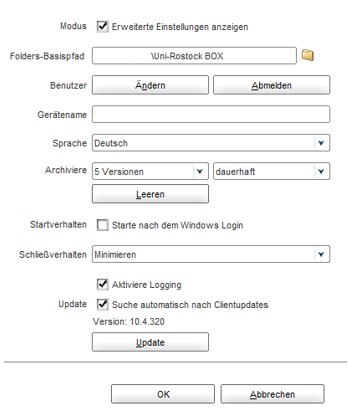
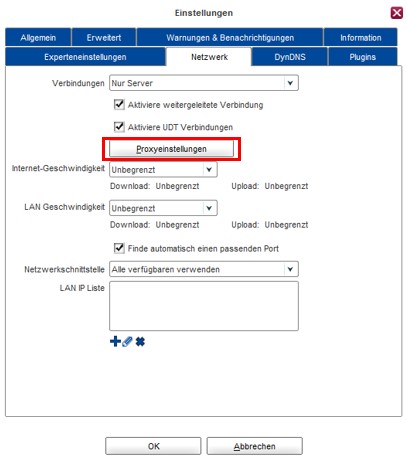
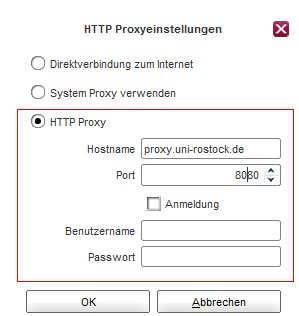
Proxy settings can be also made via a client, if required. For this, open the settings in the client and switch on the extended settings (tick on “Display extended settings”). After a client restart, the settings are available via a tab called “Network” now. There you find a button “Proxy settings” where the proxy server and the port can be indicated as well as a user name and the password, if this is set on your proxy.
Save documents with OnlyOffice and download documents
If you edit documents in the web browser using OnlyOffice, OnlyOffice stores these data every minute. This storage is done on a volatile memory. This is necessary for collaborative work.
Only after you have closed the document are the changes written back to the memory area of the Unibox.
If you can not close the document, this may cause lost content. Please close this document for the changes made so that they are saved.
If you would like to download a document via the Unibox web interface that you have previously edited, please reload the page before downloading, e.g. by pressing the F5 key.
The document will then contain the changes made online after the download.
When do I need a client?
When do I need a client?
A client is required if you want to use the synchronization functionality.
If you want to share data with other people or send data via a link, the web interface is sufficient and more intuitive to use.
The mobile apps are necessary if you want to synchronize data to or from your mobile device.
The clients can be downloaded from the download page.
Which data should not be synchronized?
In principle, only user files (e.g., documents, images, texts, etc.) should be synchronized. So-called program data (e.g., database files, mailbox data, temporary program data, etc.), which is created and managed by the applications themselves, should not be synchronized. This can lead to problems, especially during program runtime.
Which file types are not synchronized by the desktop client?
In the default settings of the desktop client, the following file types are excluded from synchronization:
*.crdownload
*desktop.ini
*.ithmb
*.temporary items
*~$*
*.partial
*~*.tmp
*.~lock.*
*.ds_store
._*
*thumbs.db
*.trashes
*.fseventd
*.apdisk
*.part
If necessary, you can add exceptions to the settings for each folder in the desktop client. Instructions for doing so can be found in the user manual.
The default settings listed here should not be changed. These settings affect all clients that have access to the folder in shared folders.
How do I change the language?
You can change the language in the web interface in your account settings.
To do this, go to “My Account” and click on the “Change” button in the ‘Language’ line. Select the desired language and click on “Change.”
The language of the client depends on the language of the operating system.
How can I restore a specific file version?
File versions can be restored using the restore function or the recycle bin.
Instructions on how to do this can be found in the user manual.
How can I delete my Unibox account?
The Unibox account of university members is deleted in a timely manner after they leave the university as part of the central account deletion process.
External users who have not logged into the service within a year are automatically deleted without additional notification.
A user account is automatically created in Unibox for each invited user. Invited internal and external users who have never logged in or registered with Unibox within 90 days of the invitation will be automatically removed from Unibox without additional notification.
If you wish to have your Unibox account deleted prematurely, please contact Unibox Support.
The Unibox account of university members will be deleted in a timely manner after they leave the university as part of the central account deletion process.
External users who have not logged into the service within one year will be automatically deleted without additional notification.
A user account is automatically created in Unibox for each invited user. Invited internal and external users who have never logged in or registered with Unibox within 90 days of the invitation will be automatically removed from Unibox without additional notification.
If you wish to have your Unibox account deleted prematurely, please contact Unibox Support.
How much storage space do I have available?
University members currently have 100 GB of storage space. Invited external persons do not receive their own storage space (0 GB). The data created or uploaded by this person is counted towards the storage space of the person who invited them.
In the default settings, up to 25 versions of each file are stored, which are also counted towards the storage space.
The number of file versions can be changed independently, or versions can be deleted.
Access with Internet Explorer
The Internet Explorer is supported only rudimentarily. Thus, there may be functional limitations in Internet Explorer.
For a full feature set, we recommend using an alternative browser, e.g. Google Chrome or Mozilla Firefox.
Two users on one PC
In case a user is registered at the PC and the desktop client runs in the background, but a second user has to register at the same PC and also intends to operate the client, you get the error message that the client is already in use. To avoid this and to be able to operate several clients with several users, you have to indicate the parameter –z during the operation.
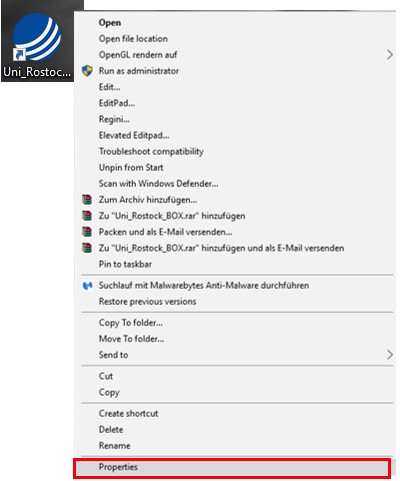
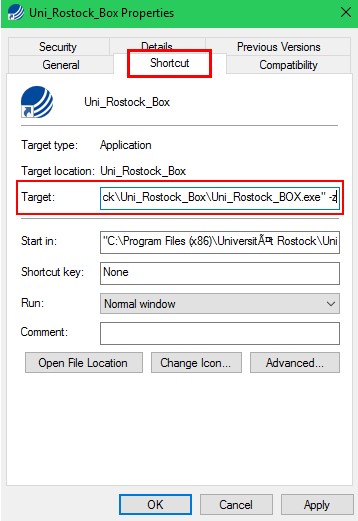
For this, create a shortcut of the Uni Rostock Box Clients on the desktop and select "Features" (right mouse click on the Icon). Change into tab "Shortcut" now and insert into field "Target"behind the path the parameter -z ("C:\Program Files (x86)\Universität Rostock\Uni_Rostock_Box\Uni_Rostock_BOX.exe" -z)
Afterwards, the client can be operated by two users on the same computer.
Please, consider that every user can start several client can start several instances simultaneously and this should only be used in the described case.