Verify device
If you want to use the chat not only in the web browser but also in the desktop or mobile clients, the device will prompt you to verify the session. If you do not follow this verification, after the session expires, you will no longer be able to access the message history and the messages will be lost. Therefore, verification of the devices used is strongly recommended.
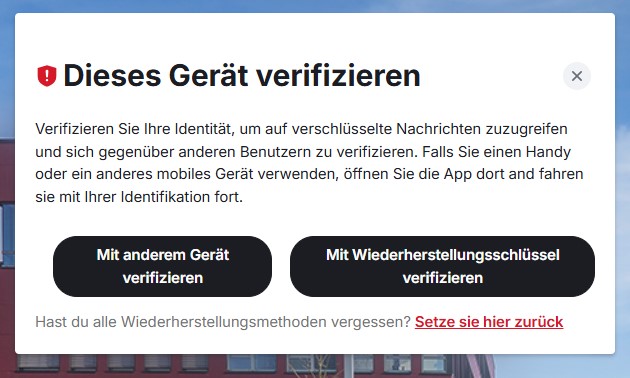
After logging in, you will be prompted directly for verification. Verification can be done either using the recovery key or through another device where you are still logged in, e.g., a web browser.
Verify Websession
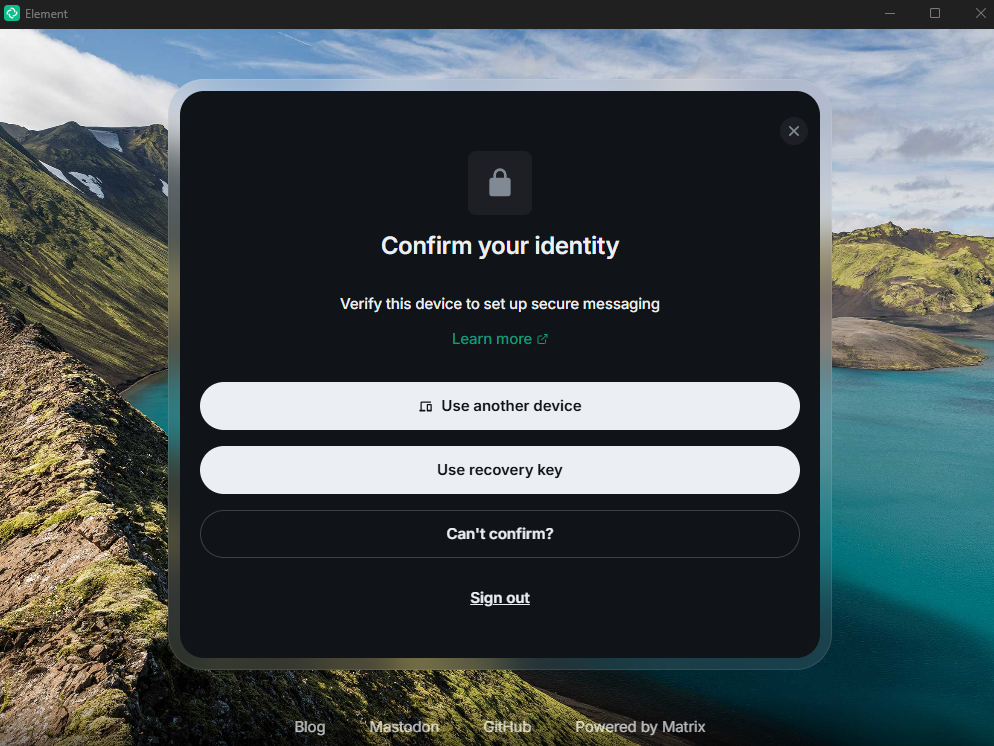
Verify Desktop-Client
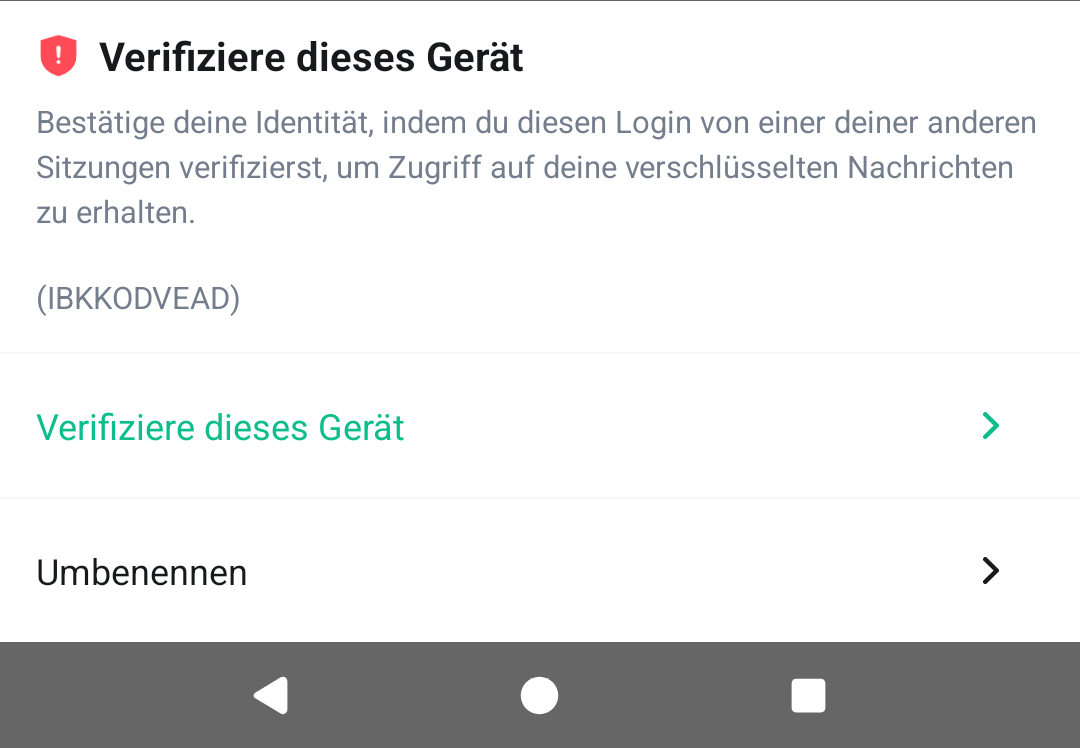
verify mobile App
In the following, verification is shown as an example between the Desktop client on Windows and a web browser (it works the same on mobile devices or clients on other operating systems):
When selecting "Use recovery key", the recovery key must be entered.
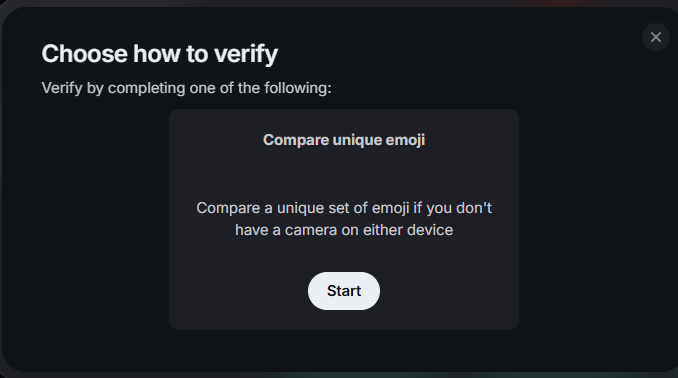
When selecting "Use another device", the message "Start verification on the other device" appears in the Desktop client, and on another device, in this case in the web browser, a pop-up message for verification appears.

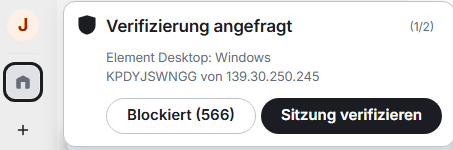
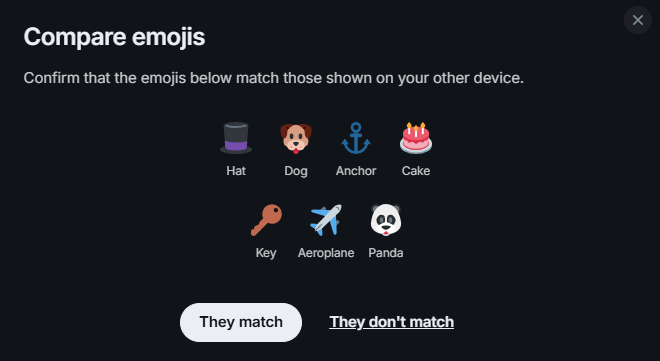
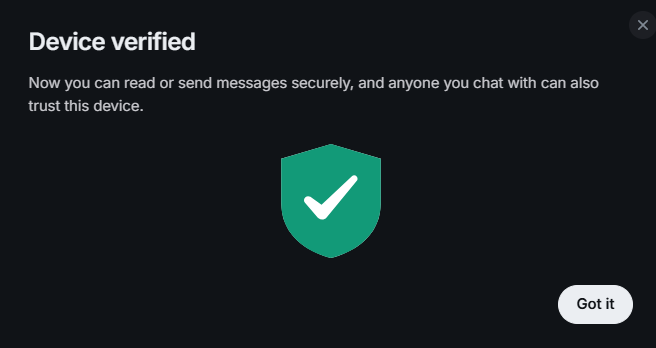
Selecting "Verify session" in the message displays the verification method selection in both the browser and the desktop client. In this case, comparing generated emojis. On a mobile device, there is additionally the option to verify via QR code. If the emojis are identical on both devices and this has been confirmed on both sides, the device is verified and can read the messages and access them again later after re-verification.