
Directchats und room
It is possible to create direct chats, meaning a 1:1 chat between two people, or chat rooms with multiple participants.
On the following pages, you will find descriptions on how to create, find, use, and delete the different types of rooms.
direct chats
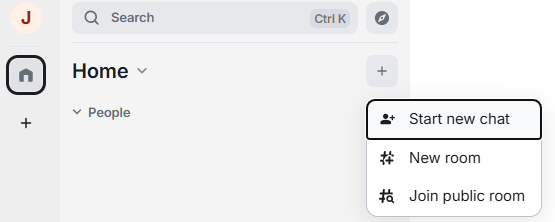
To message individual people and create a 1:1 chat, click the "+" symbol and select "New Chat" or "Start new Chat".
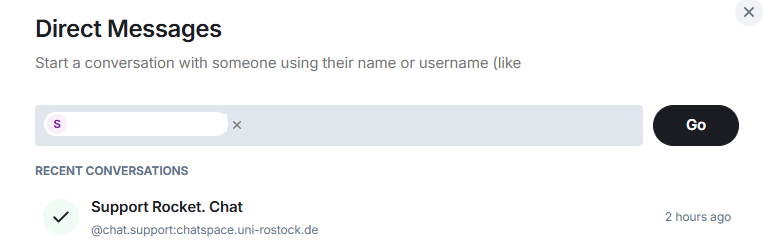
Next, a window opens where you can search for the desired participant. You can enter the person's name here or @firstname.lastname:chatspace.uni-rostock.de to select the desired person.
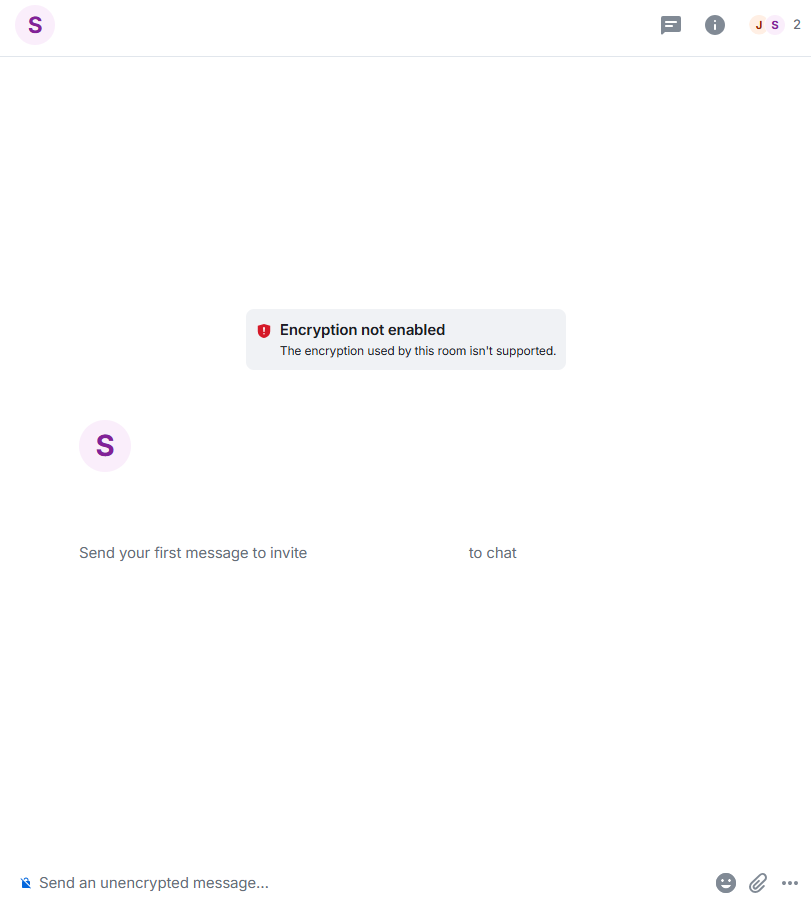
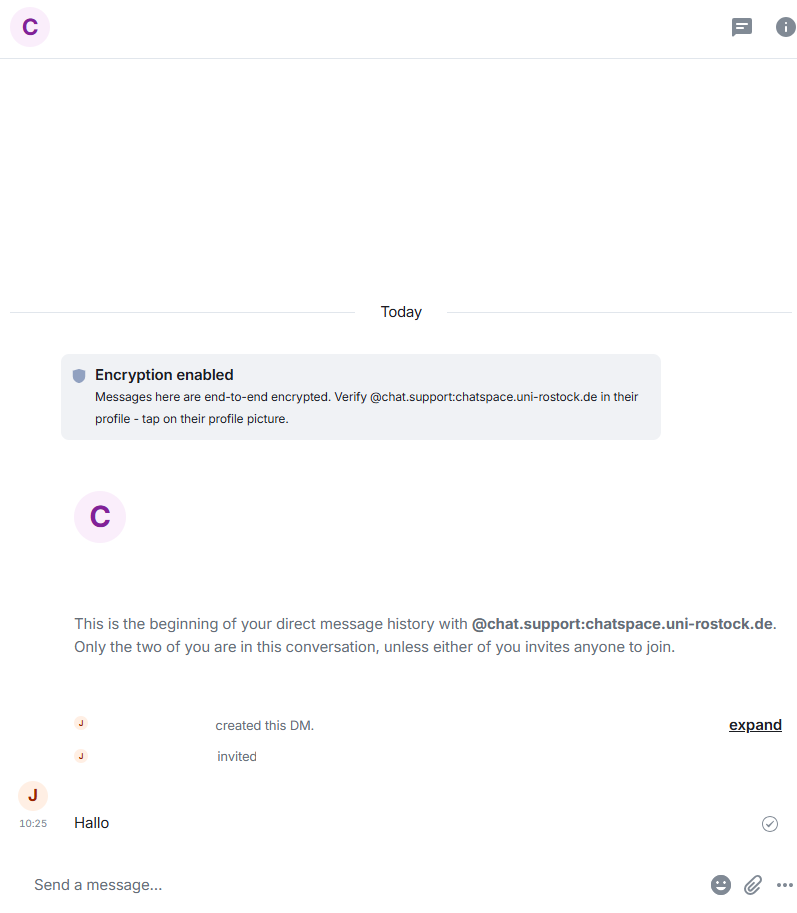
Once you have found the person, select "Go" and the room will be created.
During the person search, only people who have logged in to the system at least once are displayed. If the desired conversation partner is not found, they have not yet logged in to the chat.
No invitation email is sent.
create room
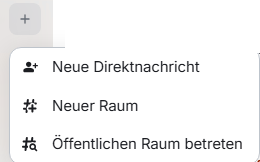
To exchange with more than one person, you can create chat rooms.
Click the "+" symbol and select "New room/new group" or "Start new Chat".
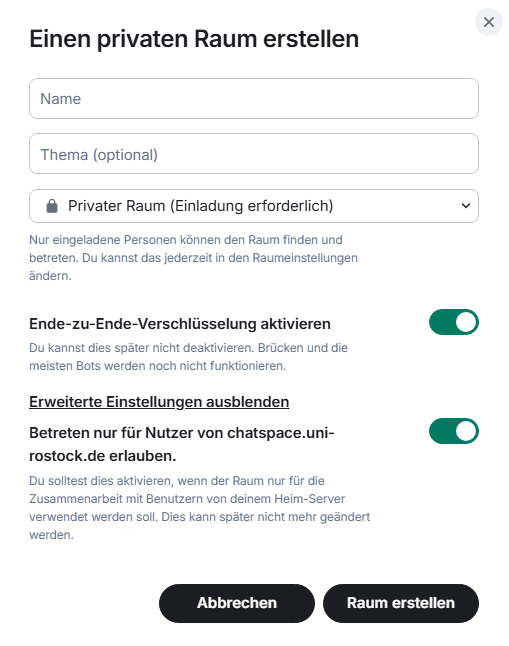
When creating a room, you have two room types to choose from.
1. Private Room (image left)
In a private room, only invited people can enter the room.
By default, all new rooms are end-to-end encrypted. If this is not desired (e.g., because verifying participants in very large rooms becomes impractical), the slider here can disable end-to-end encryption. WARNING: If the room is created with end-to-end encryption, it cannot be disabled later.
Under advanced settings, there is the option to allow entry to the room only for users from chatspace.uni-rostock.de. It is generally recommended to enable this, otherwise Matrix users outside the Uni Rostock homeserver could enter the room.
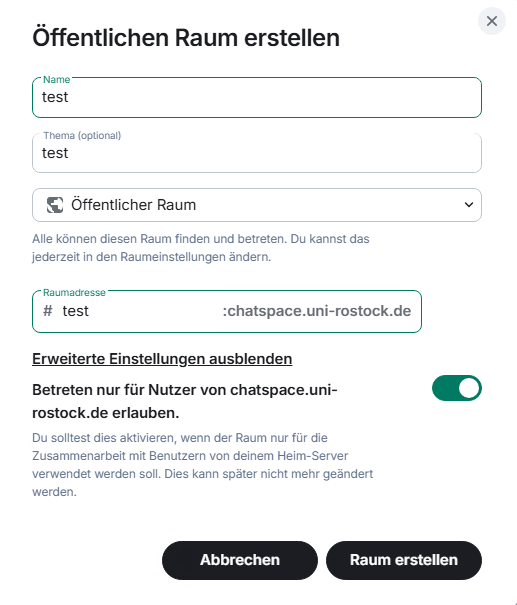
2. Public Room (image right)
A public room can be found by anyone on the server via search, and anyone can join it.
If you want to create a public room, you must assign a room address (ideally the name of the room).
Here too, under advanced settings, you will find the option to allow entry to the room only for users from chatspace.uni-rostock.de. It is generally recommended to enable this, otherwise Matrix users outside the Uni Rostock homeserver could enter the room.
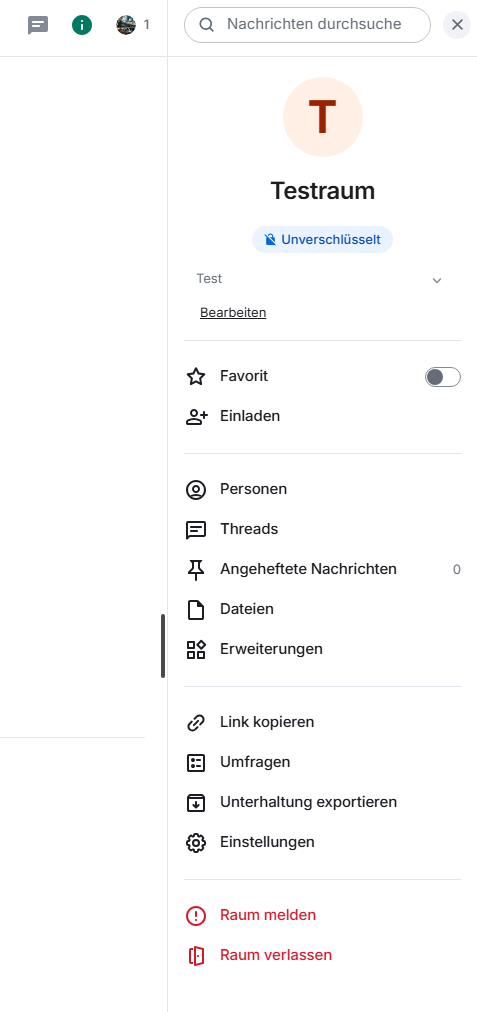
Once you have created the room, you have the option via the “Info Button” to
- edit the room
- mark as favorite
- invite people
- access threads
- view pinned messages
- view exchanged files
- copy link
- view created polls
- export conversation
- settings
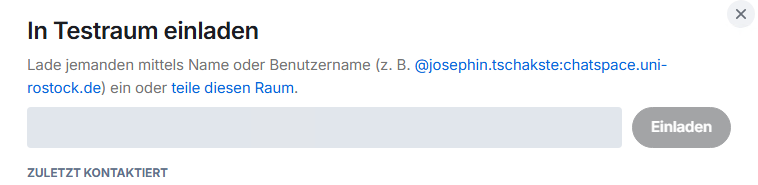
Via the "People" option, you access the invitation menu to add more people to the room.
Please note that you can only add people to the room who have logged in to the chat at least once.
room settings - general
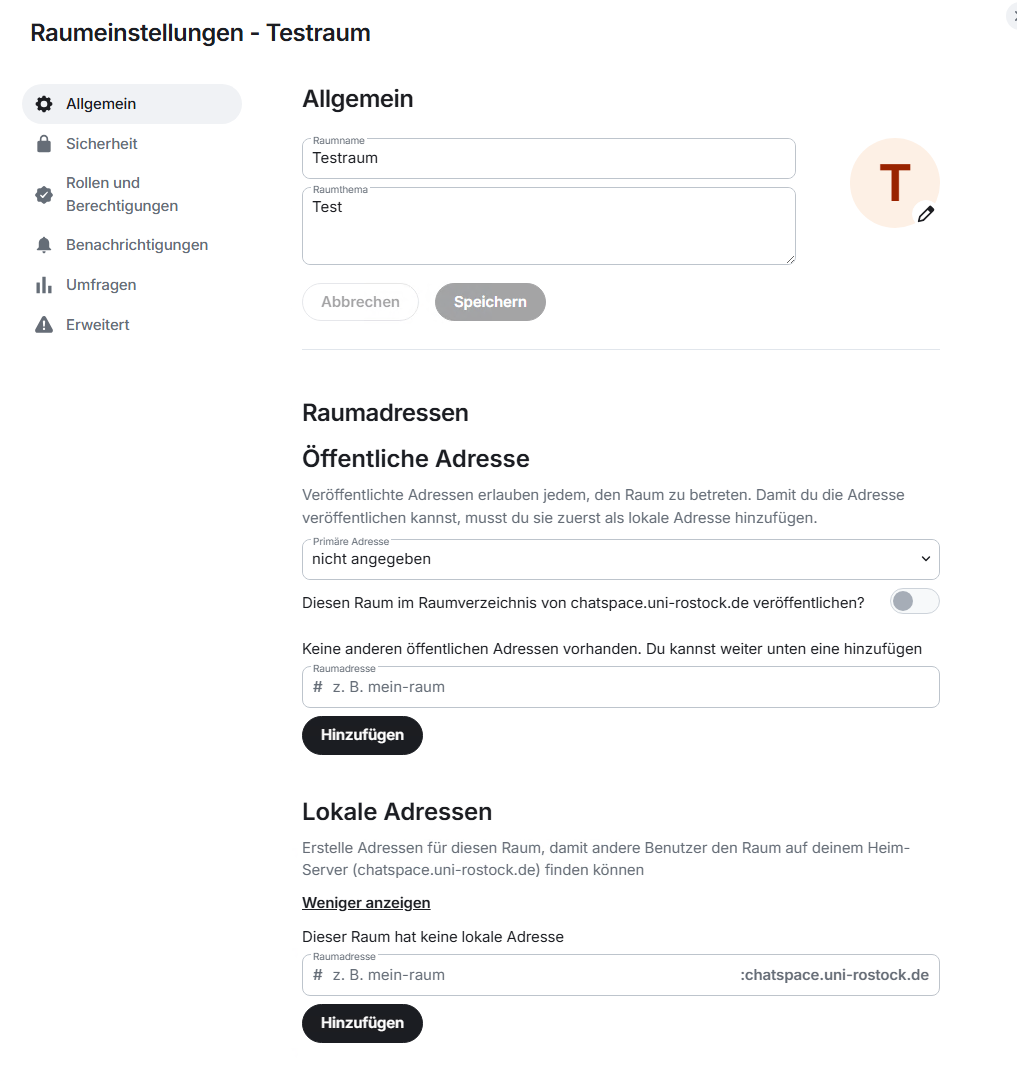
In the settings under the "General" tab, you can adjust the room name and description afterwards, and upload a room-specific image.
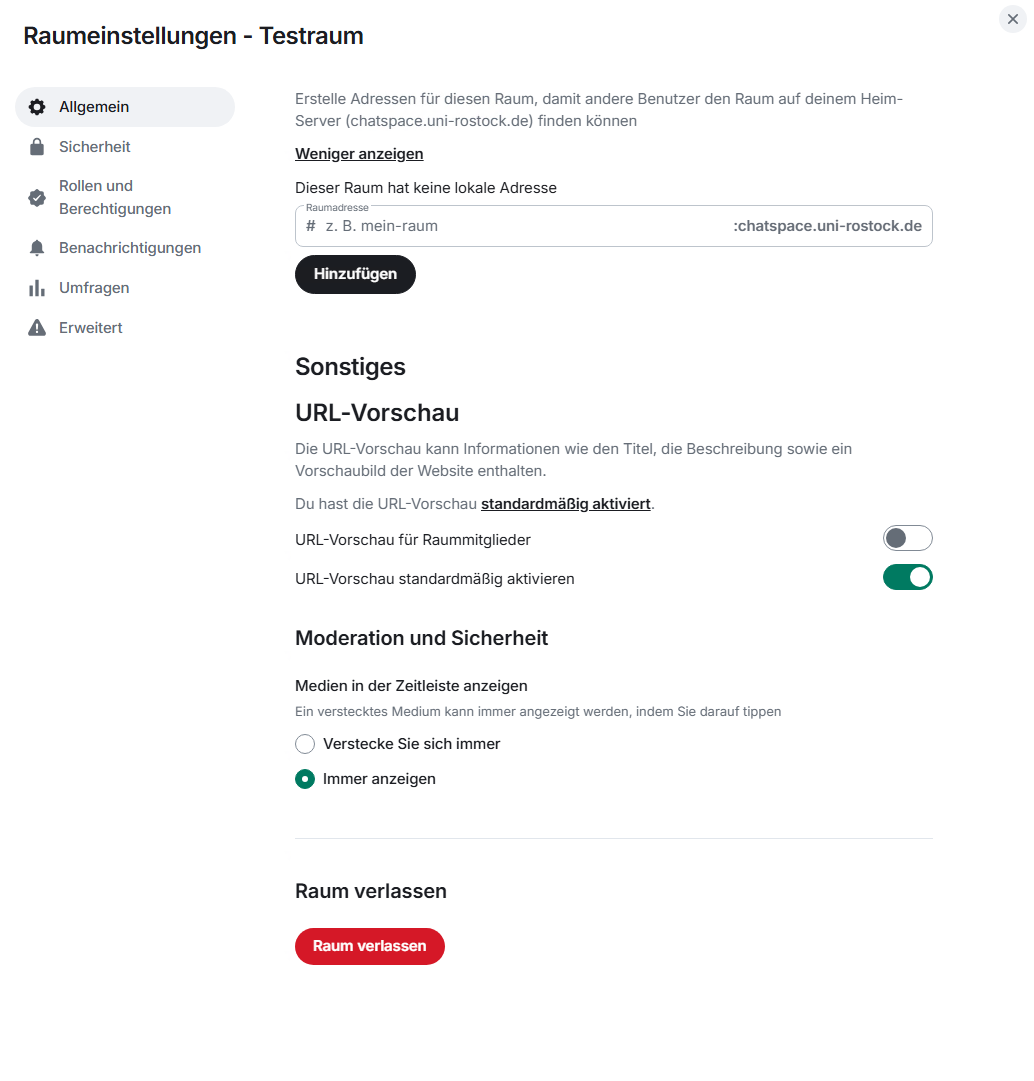
Additionally, you can set how inserted URLs and media should be displayed.
room settings - security
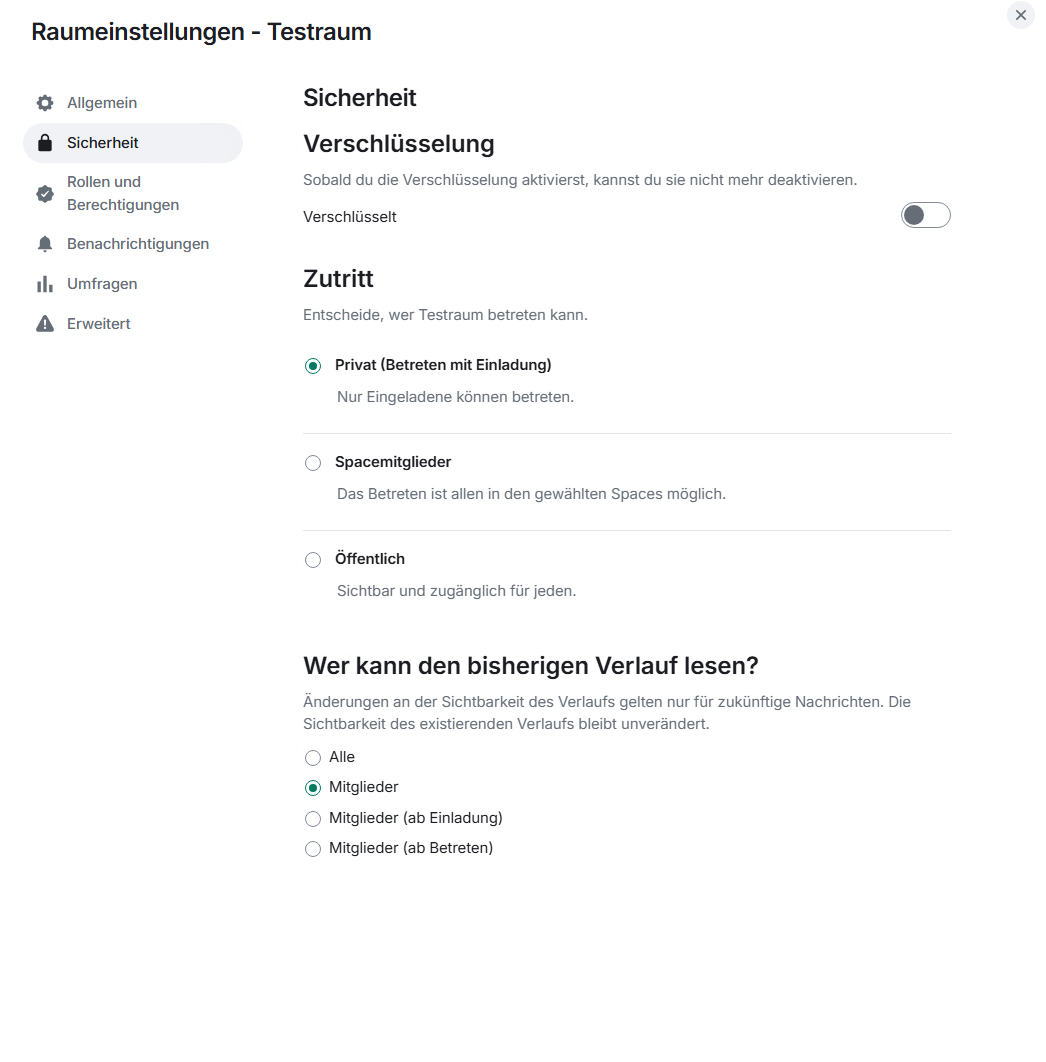
In the "Security" tab, you can make various security settings for the room.
You can enable encryption afterwards. Please note that the encryption cannot be disabled once it has been set.
Additionally, you can decide whether the room should be private or public and who can read the previous history of the chat room.
The default setting here is "Members", so every member can read all messages. However, you also have the option to change this to Members (from invitation) or Members (from joining).
This way, members would only be able to read messages after they have been invited or from when they join
room settings - roles & permissions
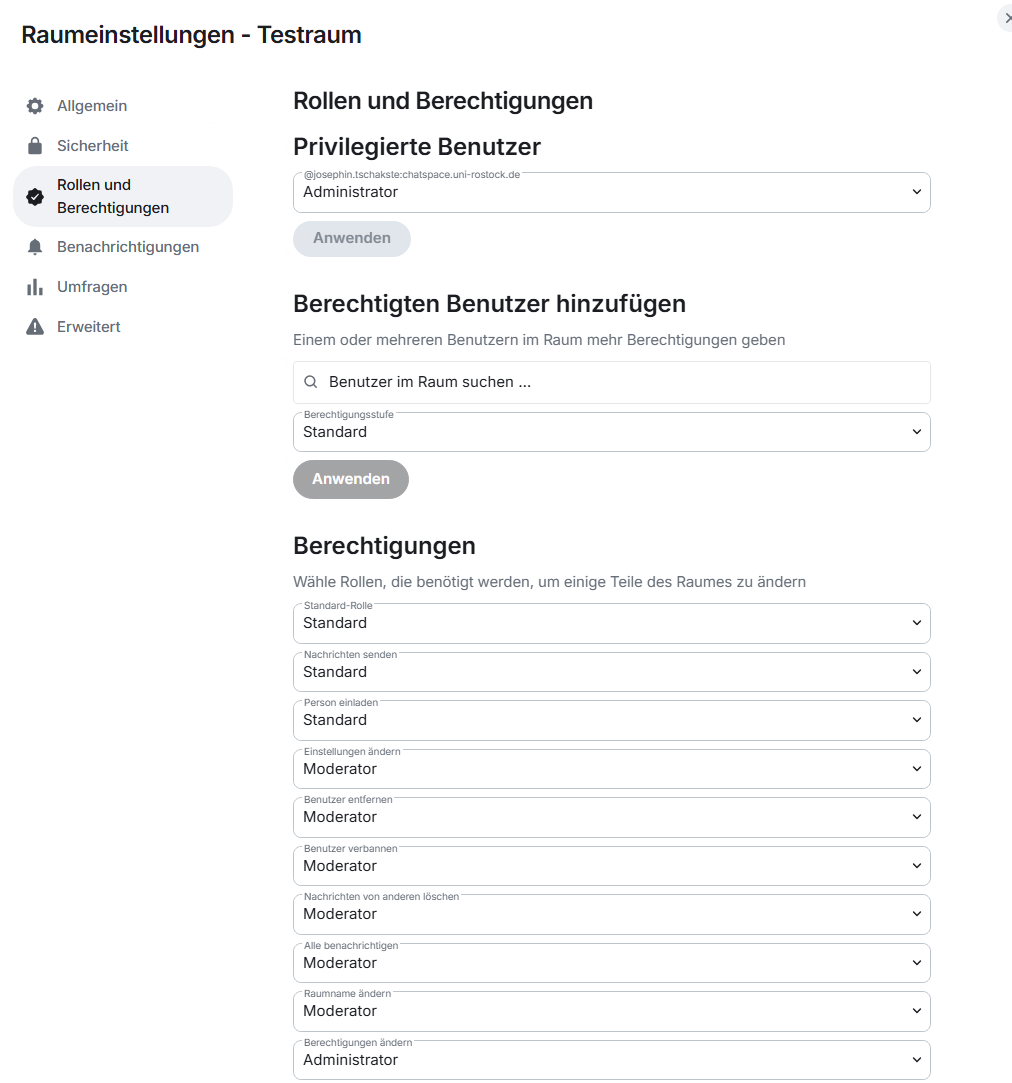
In the "Roles & Permissions" tab, you have the option to adjust roles for various room permissions.
Additionally, you can customize permissions for individual users.
Tip: If you want to create an informative public room, for example to announce maintenance work on a specific service, information about events, or similar, we recommend setting the "Send messages" permission to at least Moderator or Administrator.
This way, room users cannot send messages. This is suitable for announcement-only channels.
room settings - notifications
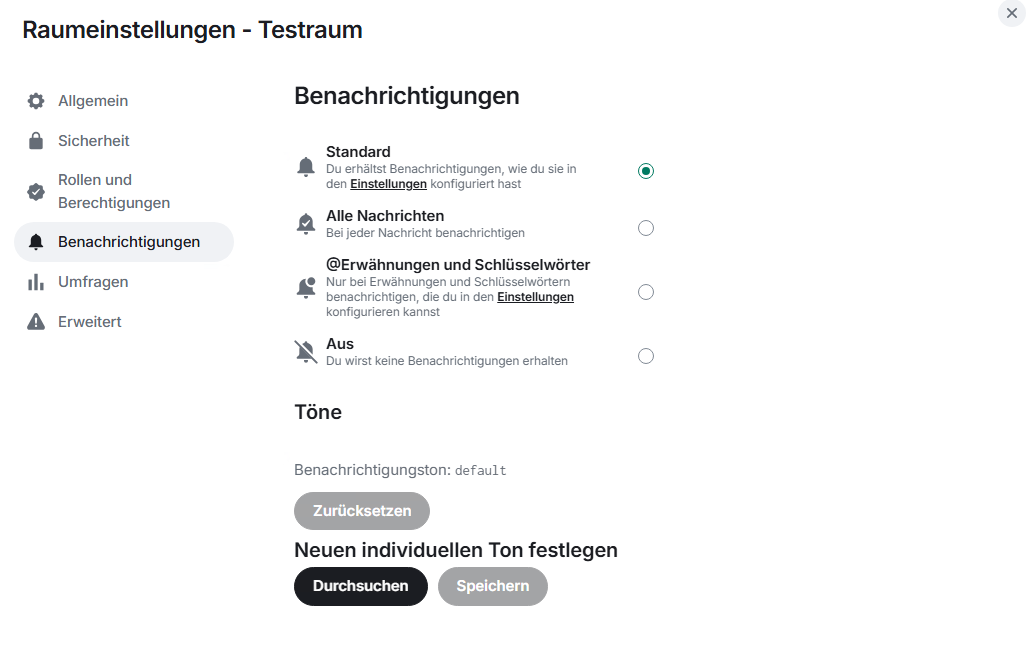
In the "Notifications" tab, you can set the notification settings for the room, for example whether you want to be notified for all messages, only mentions, or not at all.
Additionally, you can set a custom individual tone instead of the standard tone.
As a room administrator, you are responsible for the content shared in the room (e.g., fake news, hate speech, etc.).
You can involve other people in this responsibility by adding them as moderators. Via the admin tools, you can also respond to misconduct (mute, remove from room, delete messages).
find room
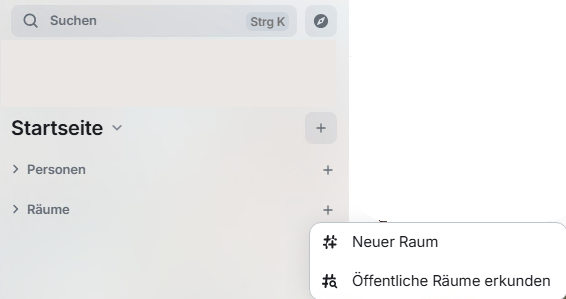
The room directory displays and allows searching for publicly accessible rooms on the University of Rostock chat server.
You can find the room directory via the "Discover/Explore" button (compass symbol) at the top left under the display name or via the "+" symbol in rooms.
delete and leave a room
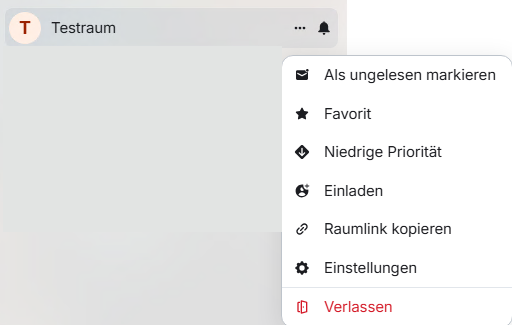
If you want to delete a room, all members must leave the room. Empty rooms are then automatically permanently deleted.
As a room administrator, you have the option to remove the room members and leave the room last to initiate the subsequent deletion by the server.]
export a room
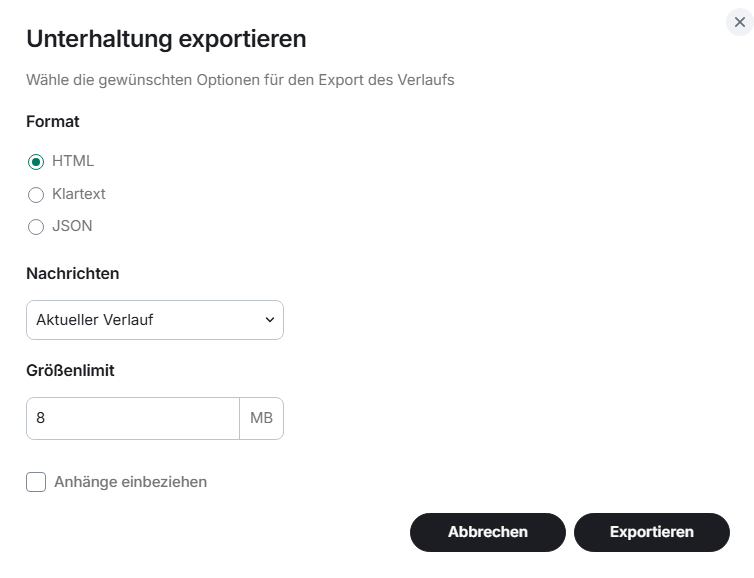
If you want to export a room history or conversation, select the Info button within the room and choose "Export conversation".
In the window, you can select the export format, set a size limit, include attachments, and choose which messages to export (Current history, From the beginning, or a specific number of messages).