Desktop & Mobile Clients
The service supports sending files, images, and videos. Access is provided through a web interface.
The recommended client for using the chat service is called Element and can be used on various systems and devices:
- Element Web: The University of Rostock's browser-based web app
- Element Desktop: Download for Linux/Windows/Mac Note: Please select the "Desktop" version here.
- Element Mobile: Android, FDroid or iOS
WARNING: When launching the client, the URL of the original Matrix server is pre-configured by default. This must be changed to the University of Rostock's server.
Element Desktop-Client
Alternatively, you can also use the desktop client. Please make sure to specify the correct server BEFORE entering your login credentials.
Selection of "Sign In"
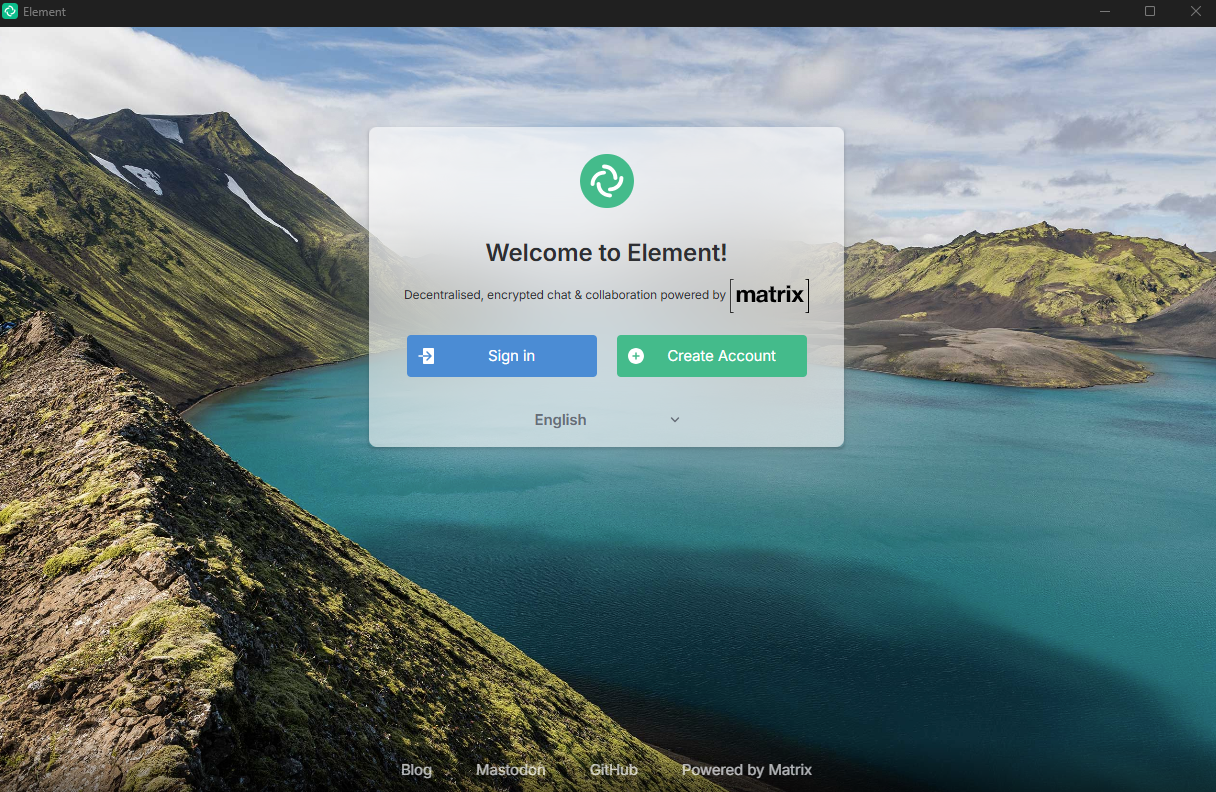
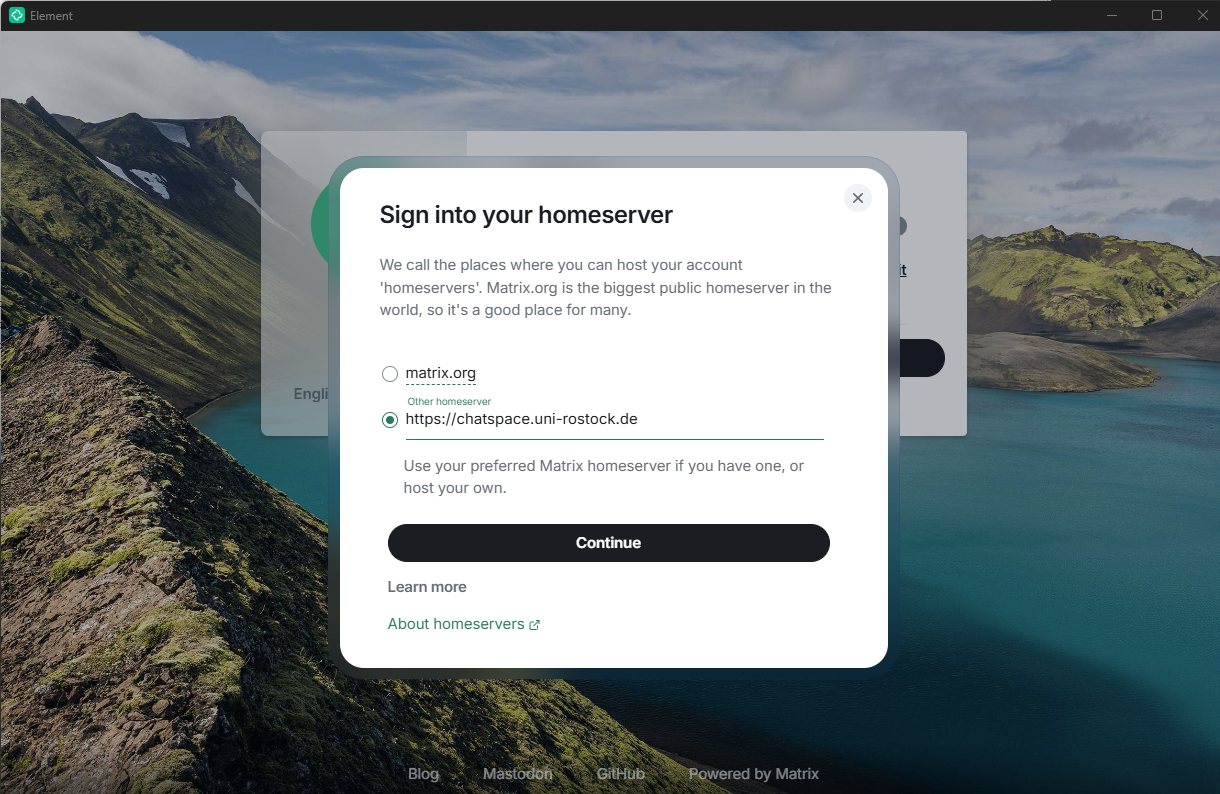
WARNING: The Matrix server is pre-filled here by default. Please select "Edit" to avoid accidentally logging in to the wrong server.
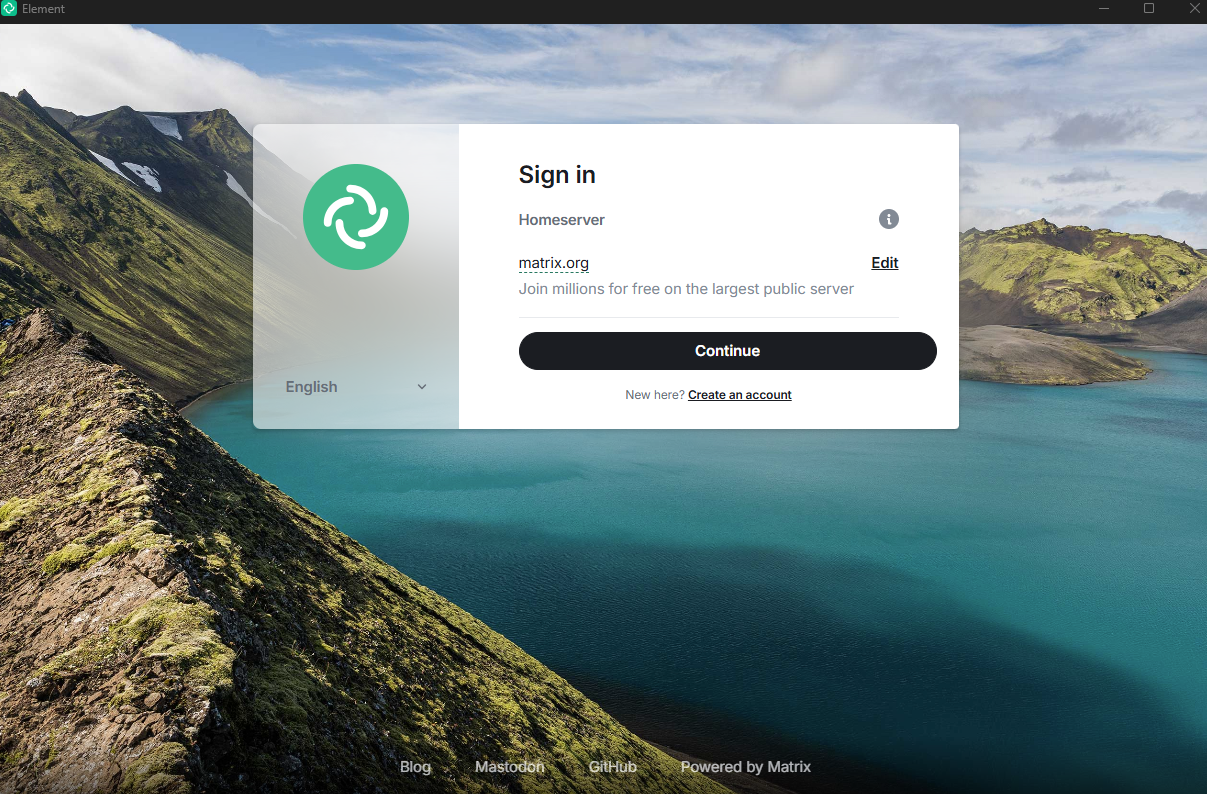
Manually enter the homeserver “https://chatspace.uni-rostock.de” here.
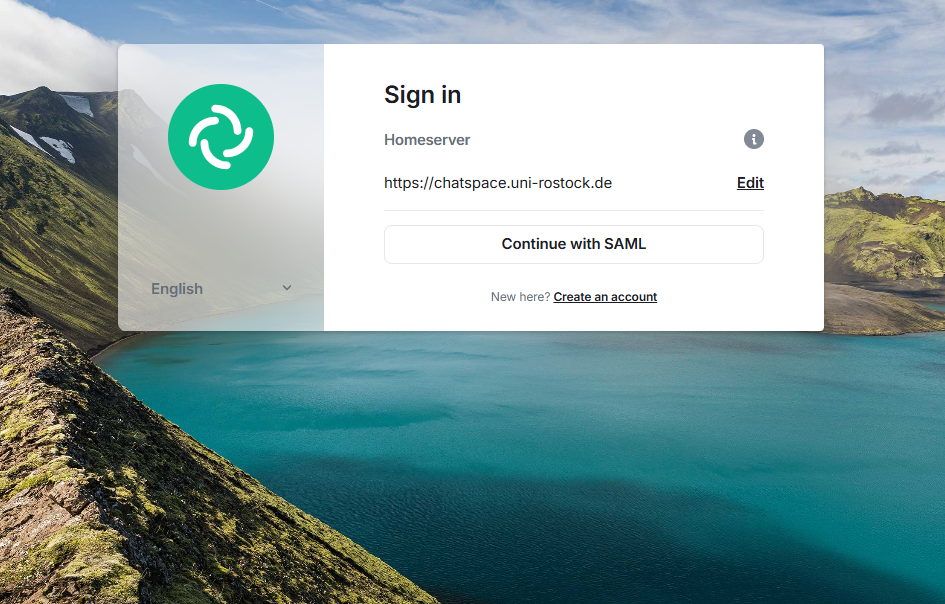
Clicking "Continue with SAML" will redirect you to Shibboleth authentication to log in to the service.
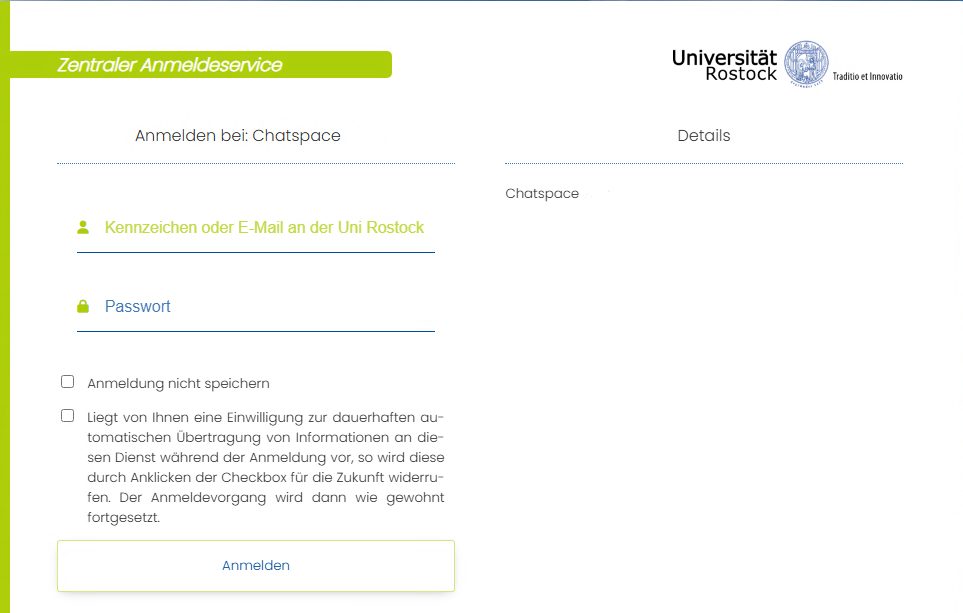
Then you can log in as usual with your username and password.
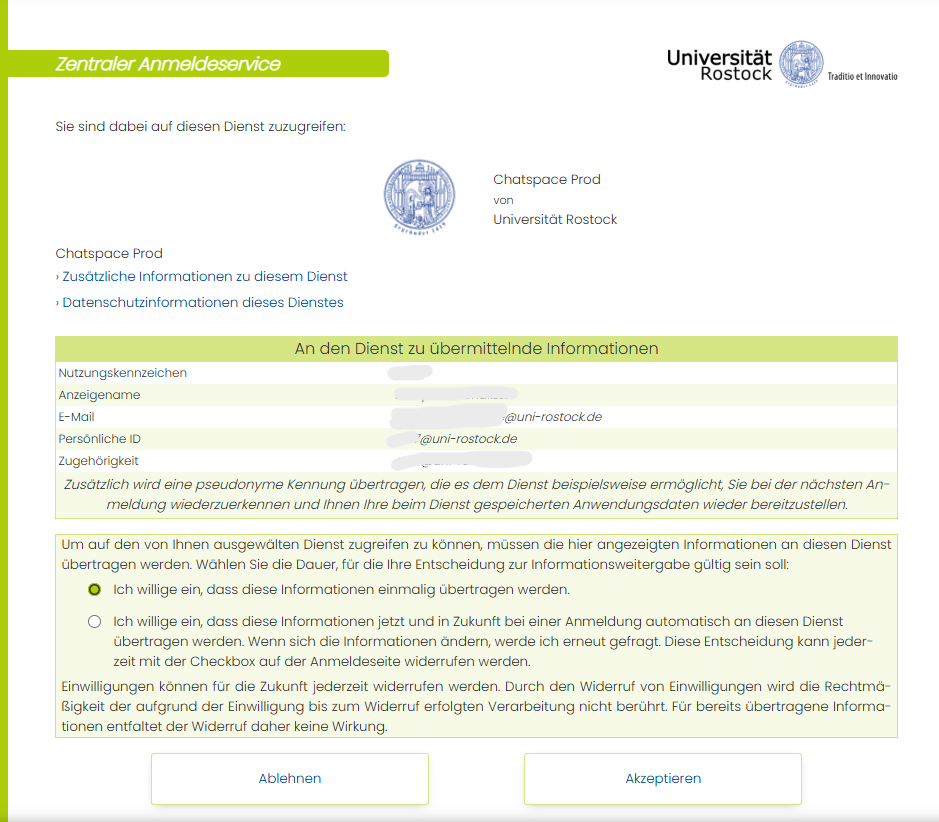
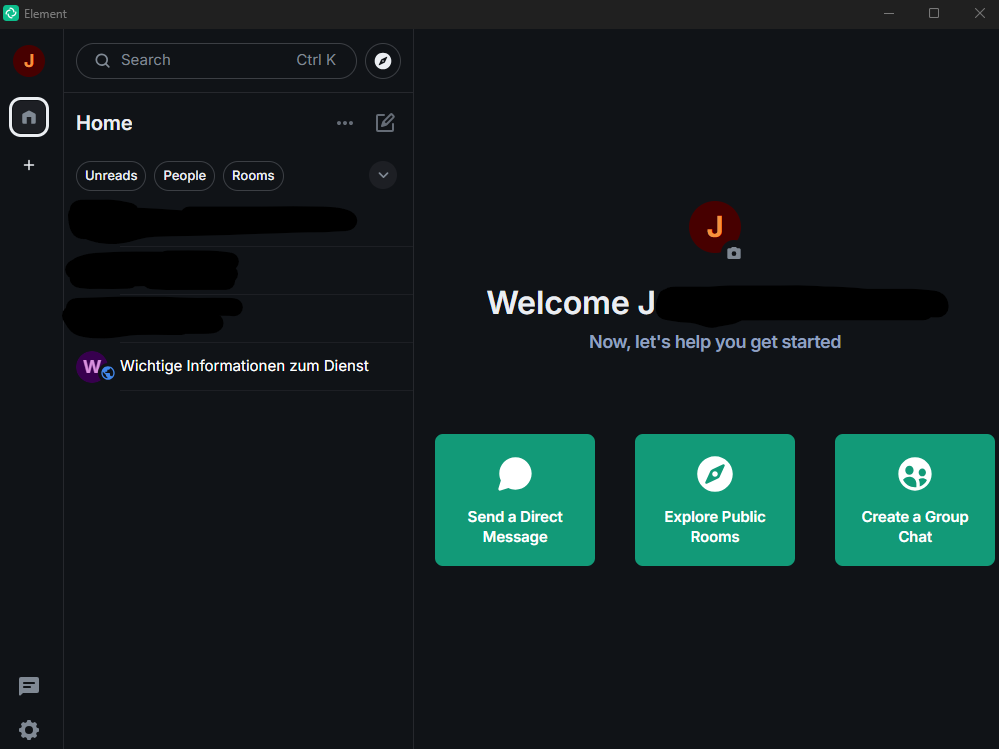
After successful login, you will reach the chat homepage.
Element Android App
Download the Element Classic app from the App Store. After downloading from the App Store, the app can be launched.
On the start screen, please select "Sign In" and on the following page change the server from "matrix.org" to "https://chatspace.uni-rostock.de".
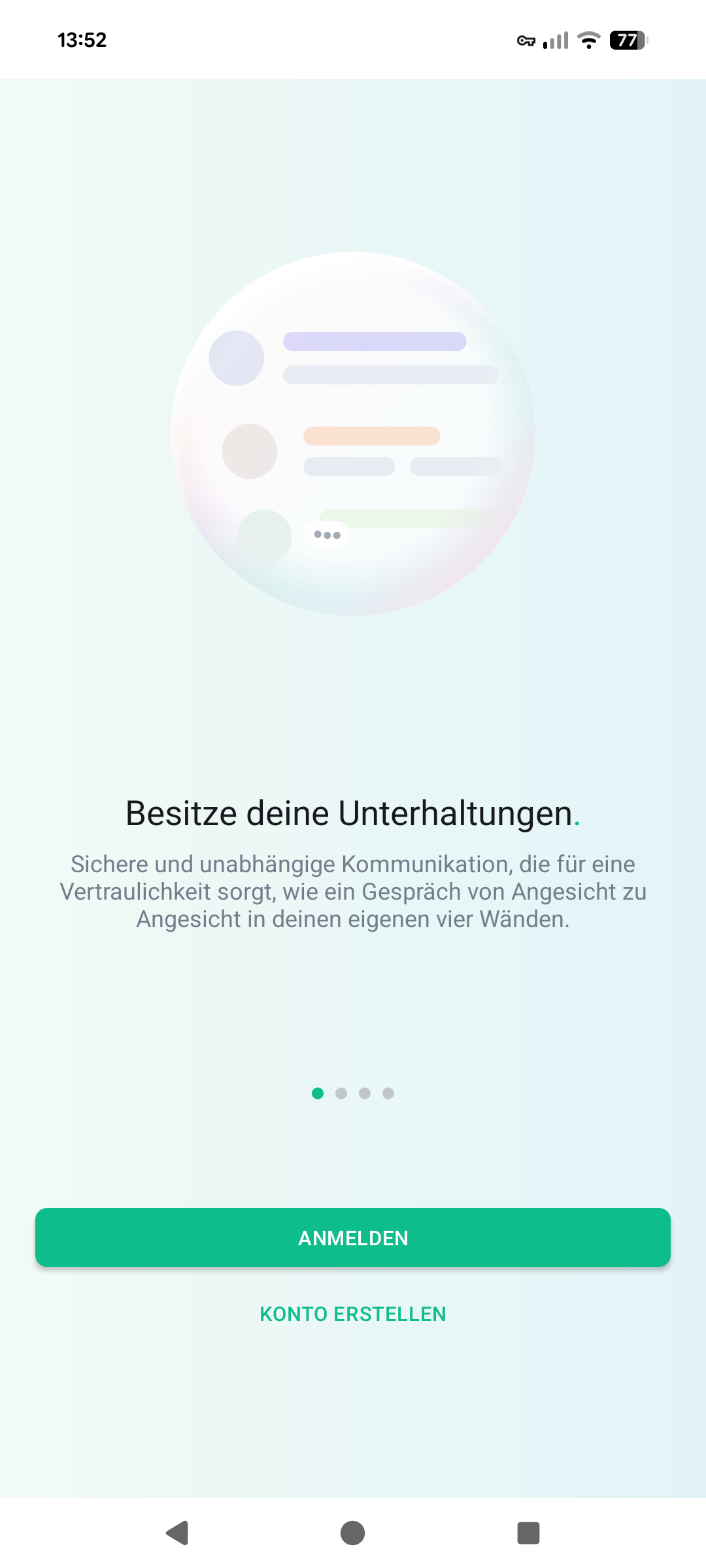
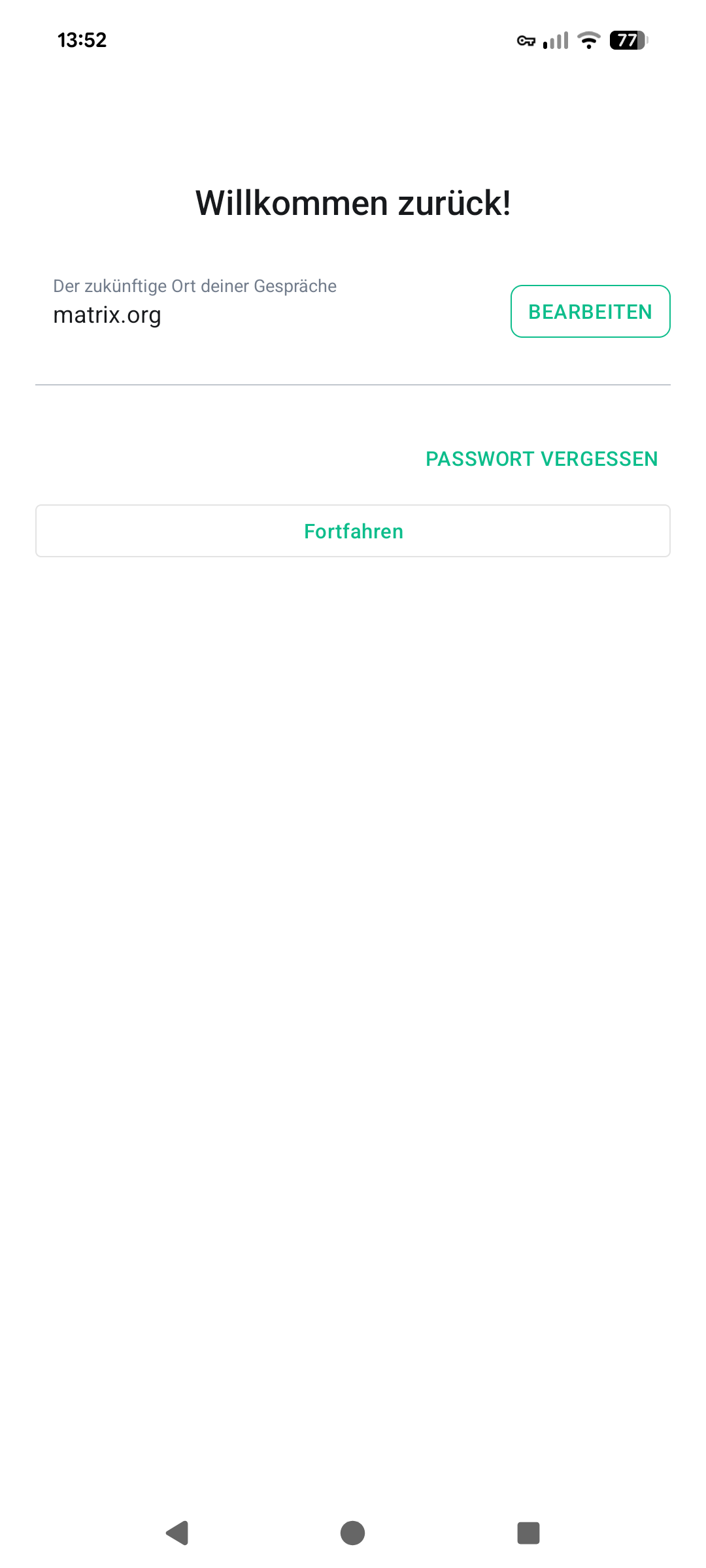
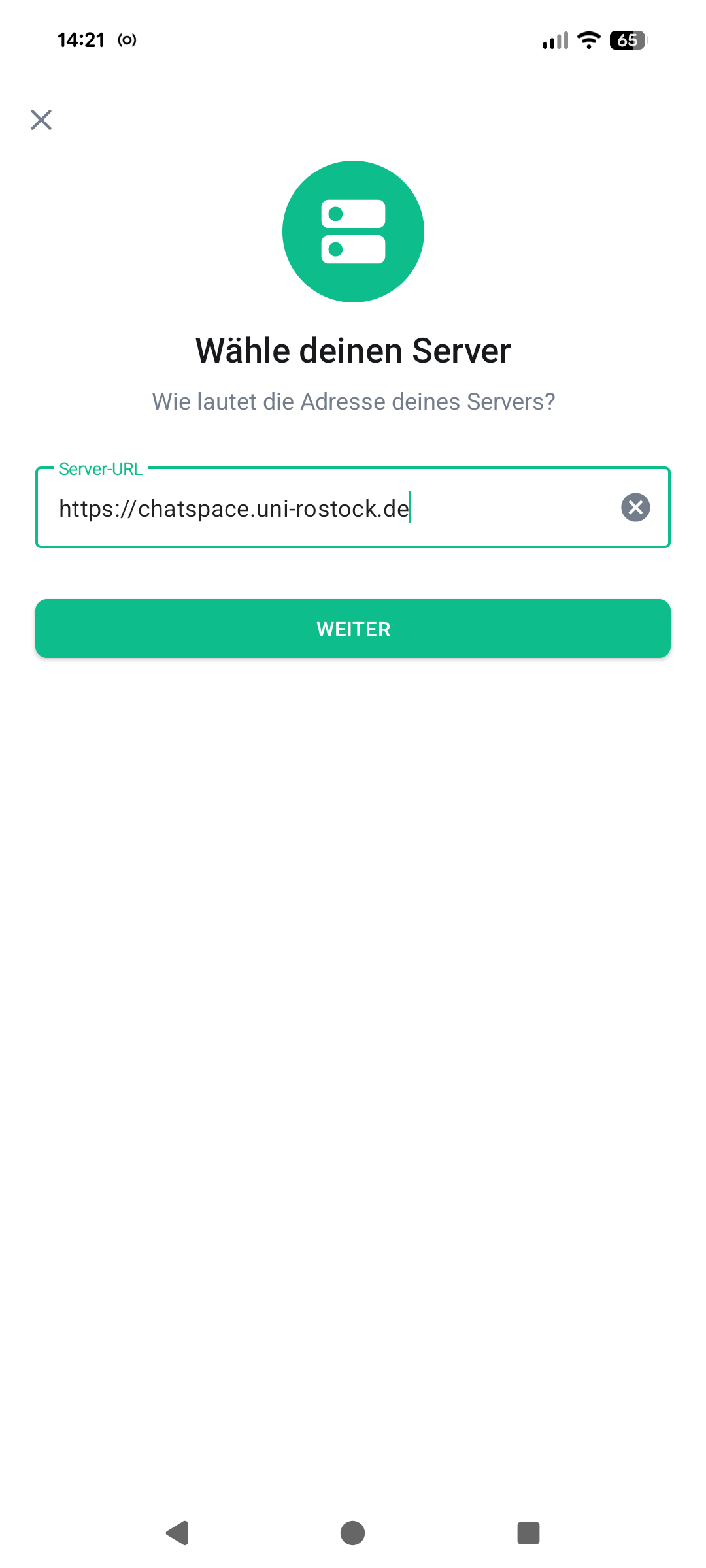
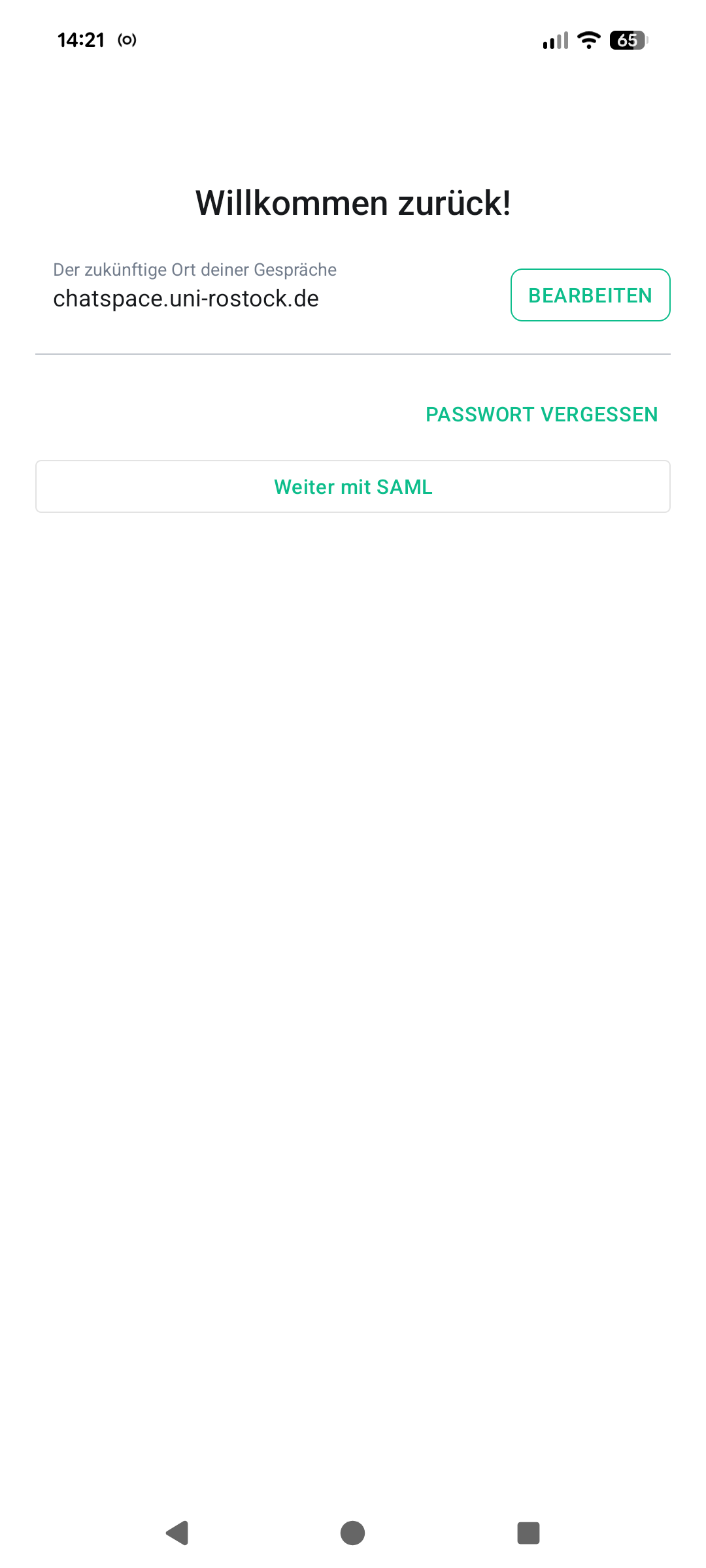
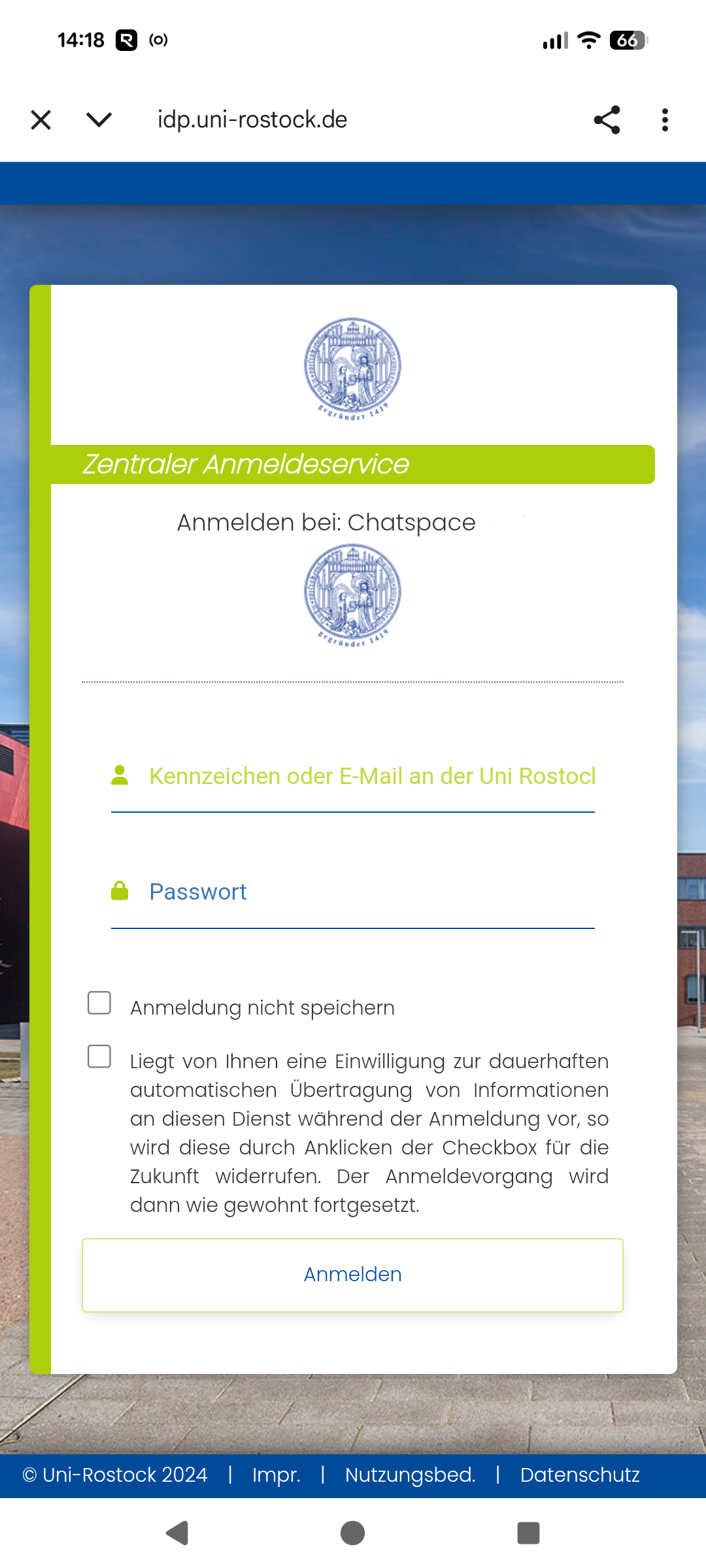
After changing the server URL, clicking the "Continue with SAML" button will redirect you to the Shibboleth login page.
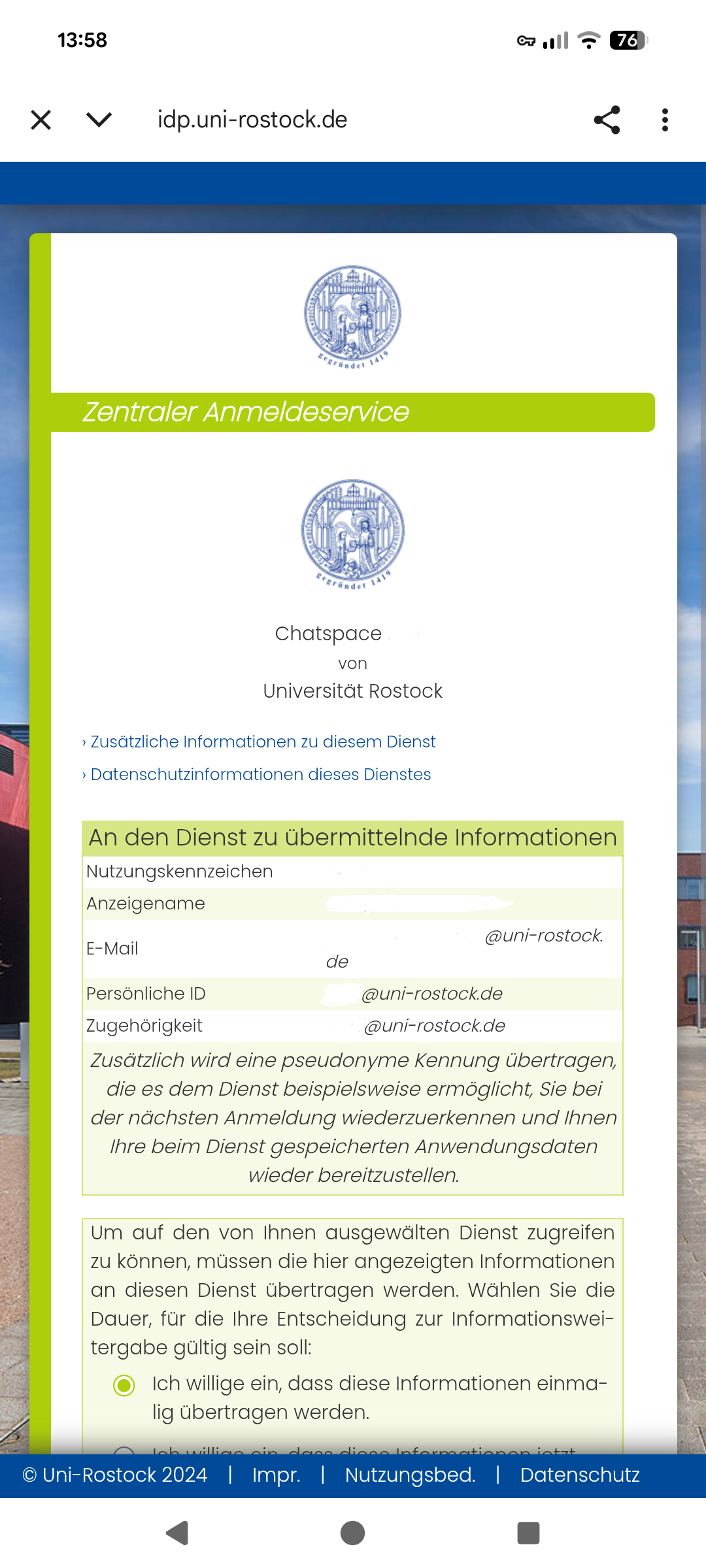
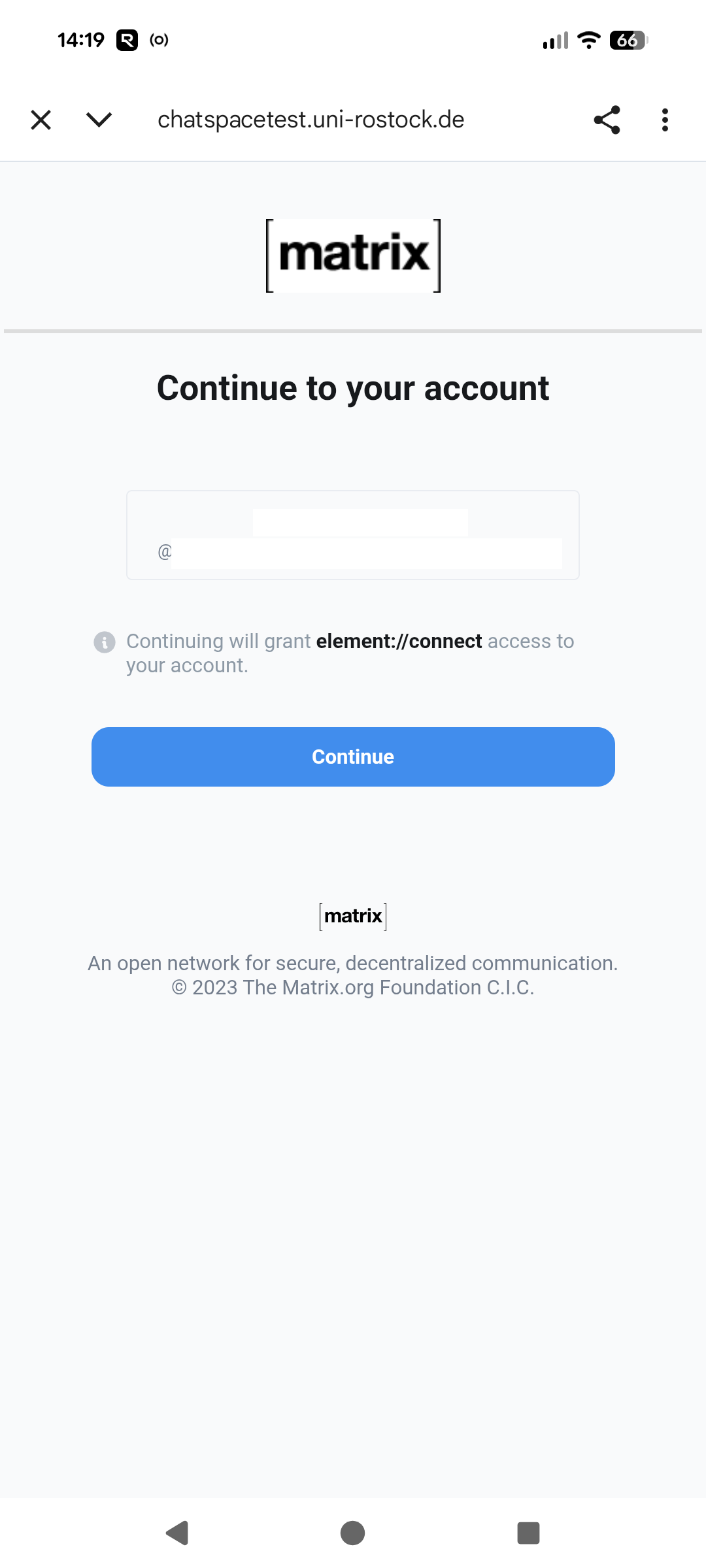
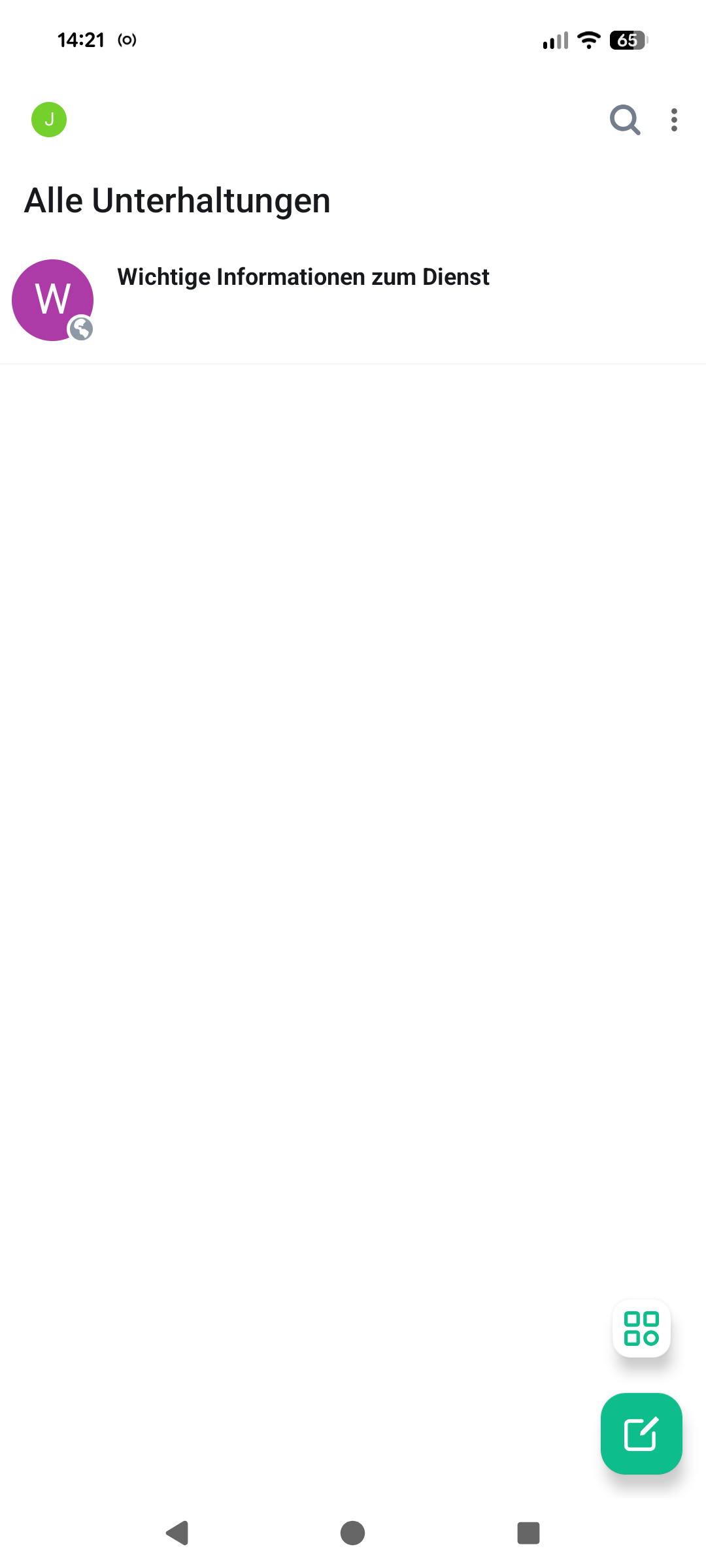
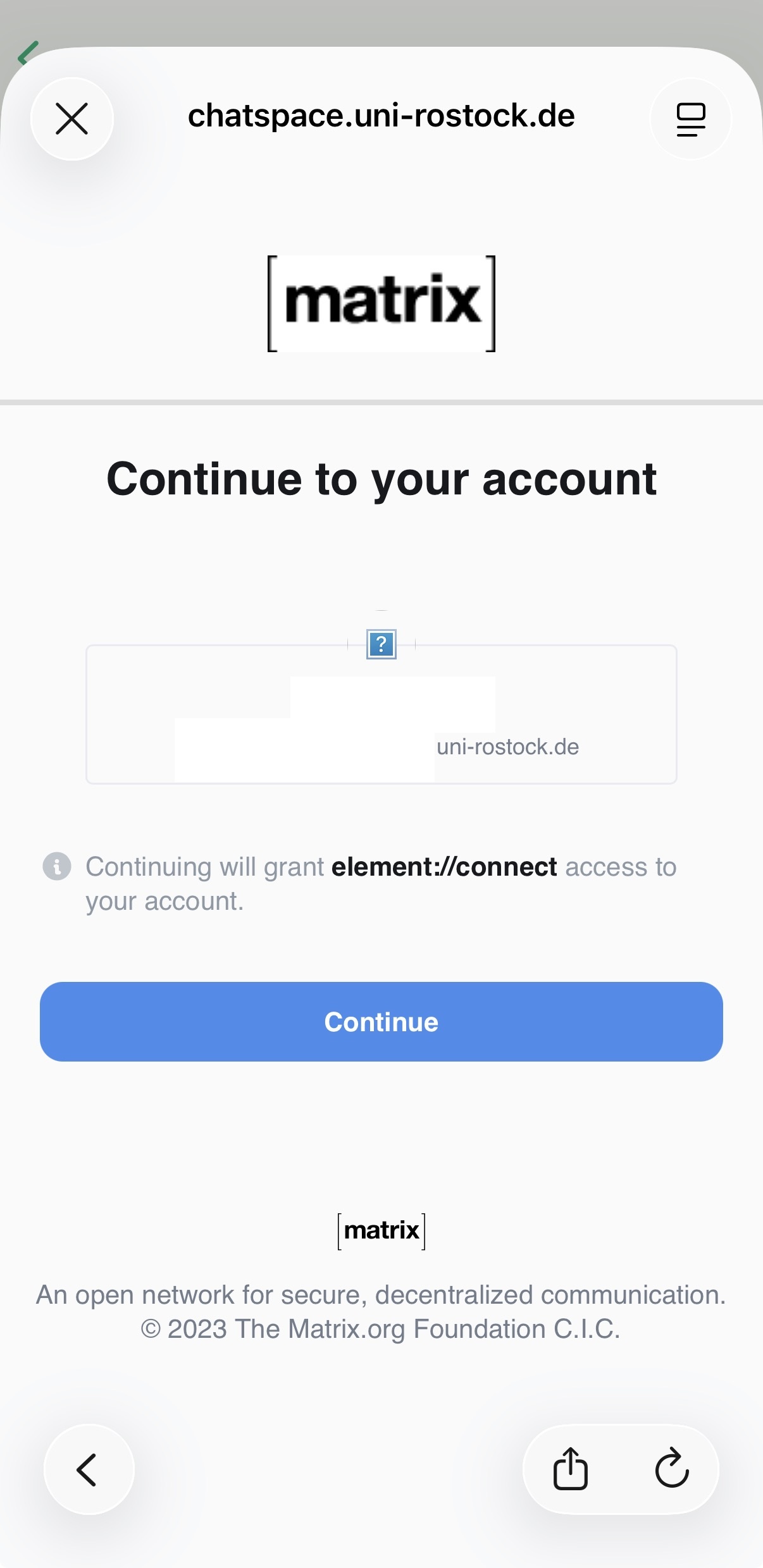
There, log in as usual with your username and password, consent to the transmission of data, and then confirm with "Continue" to log in to the chat. The login is complete and the chats will be displayed.
Element iOS App
Laden Sie die Element Classic App aus dem App Store herunter. Nach dem Herunterladen aus dem App Store, kann die App gestartet werden.
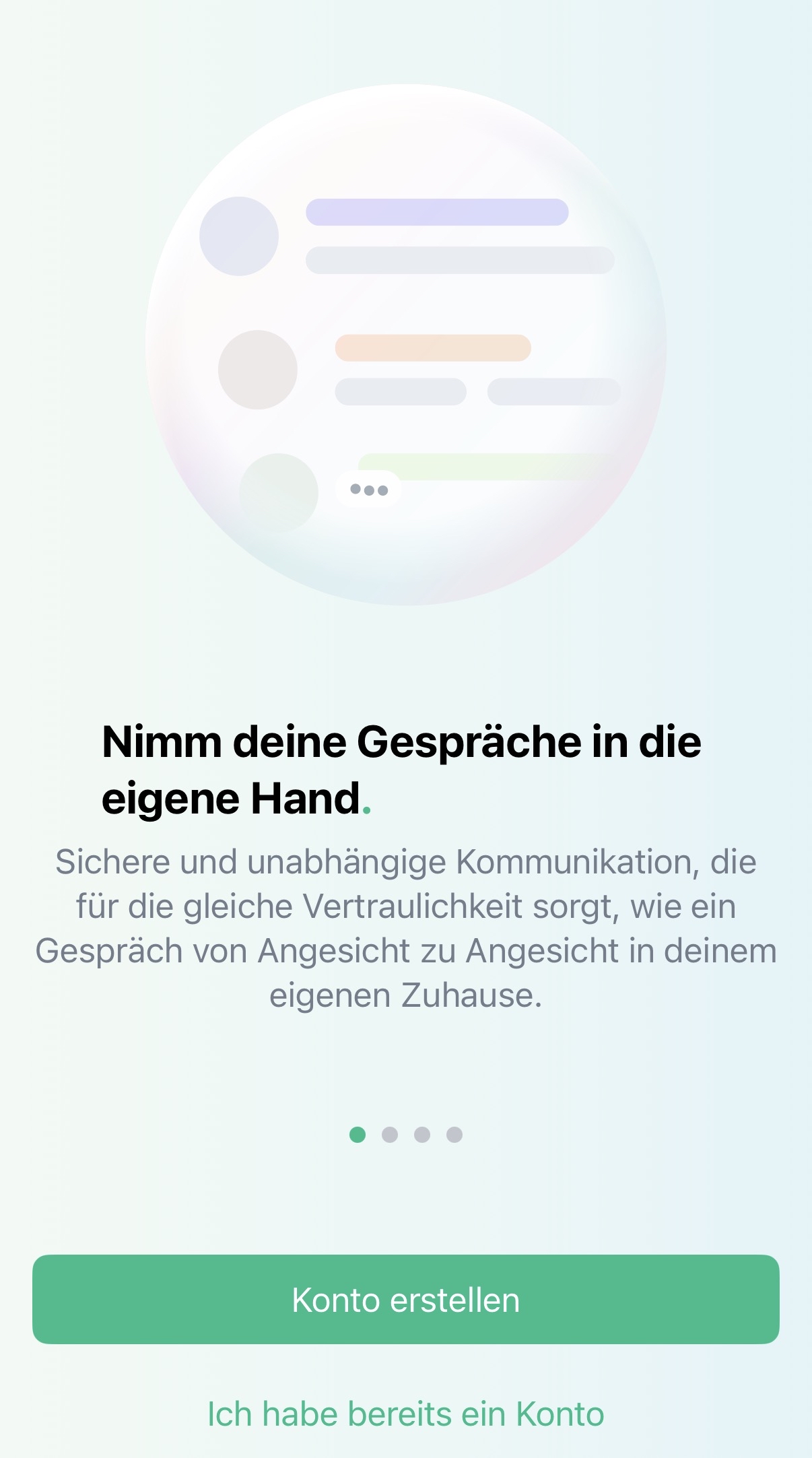
Im Start-Screen bitte "Anmelden" wählen und auf der danach folgenden Seite den Server von "matrix.org" auf "https://chatspace.uni-rostock.de" ändern.
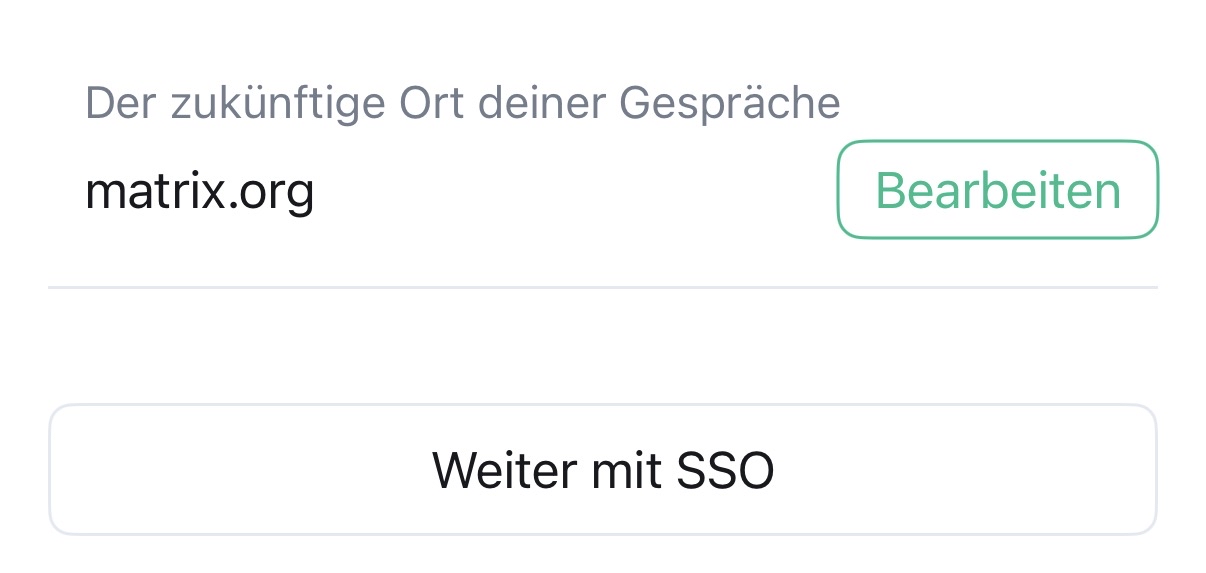
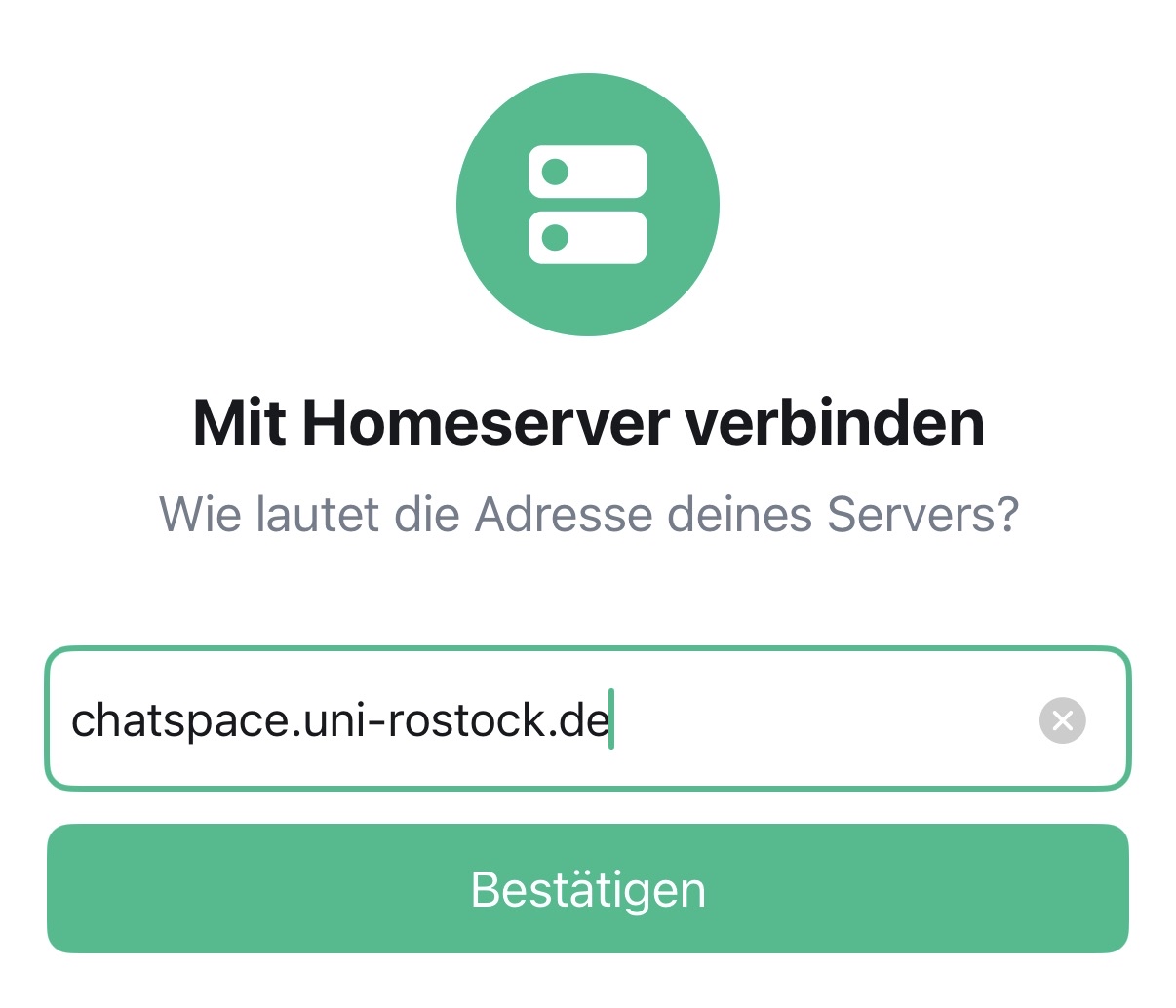
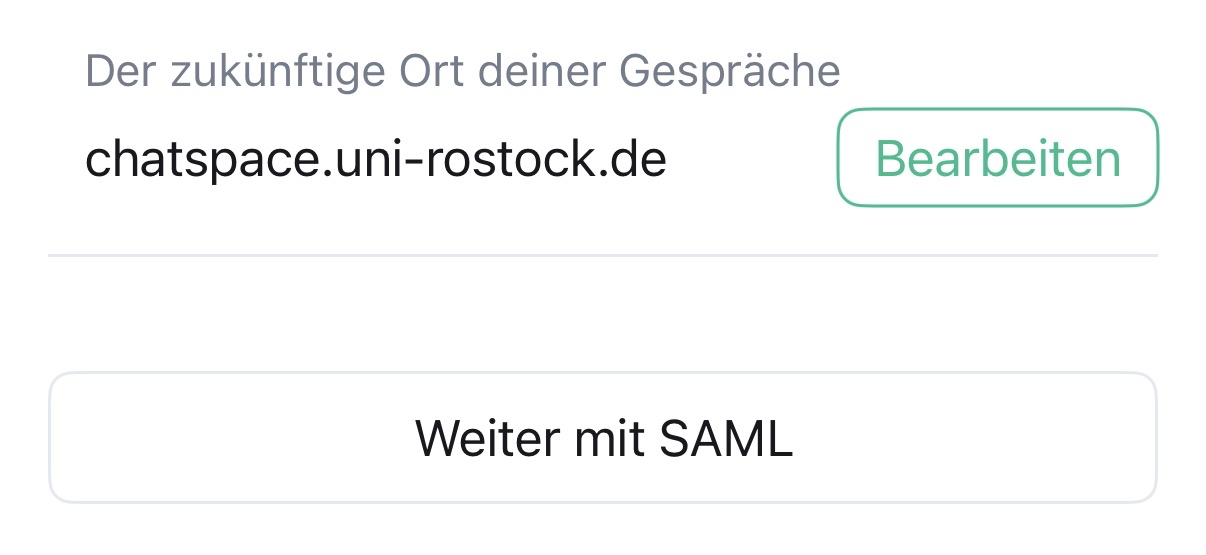
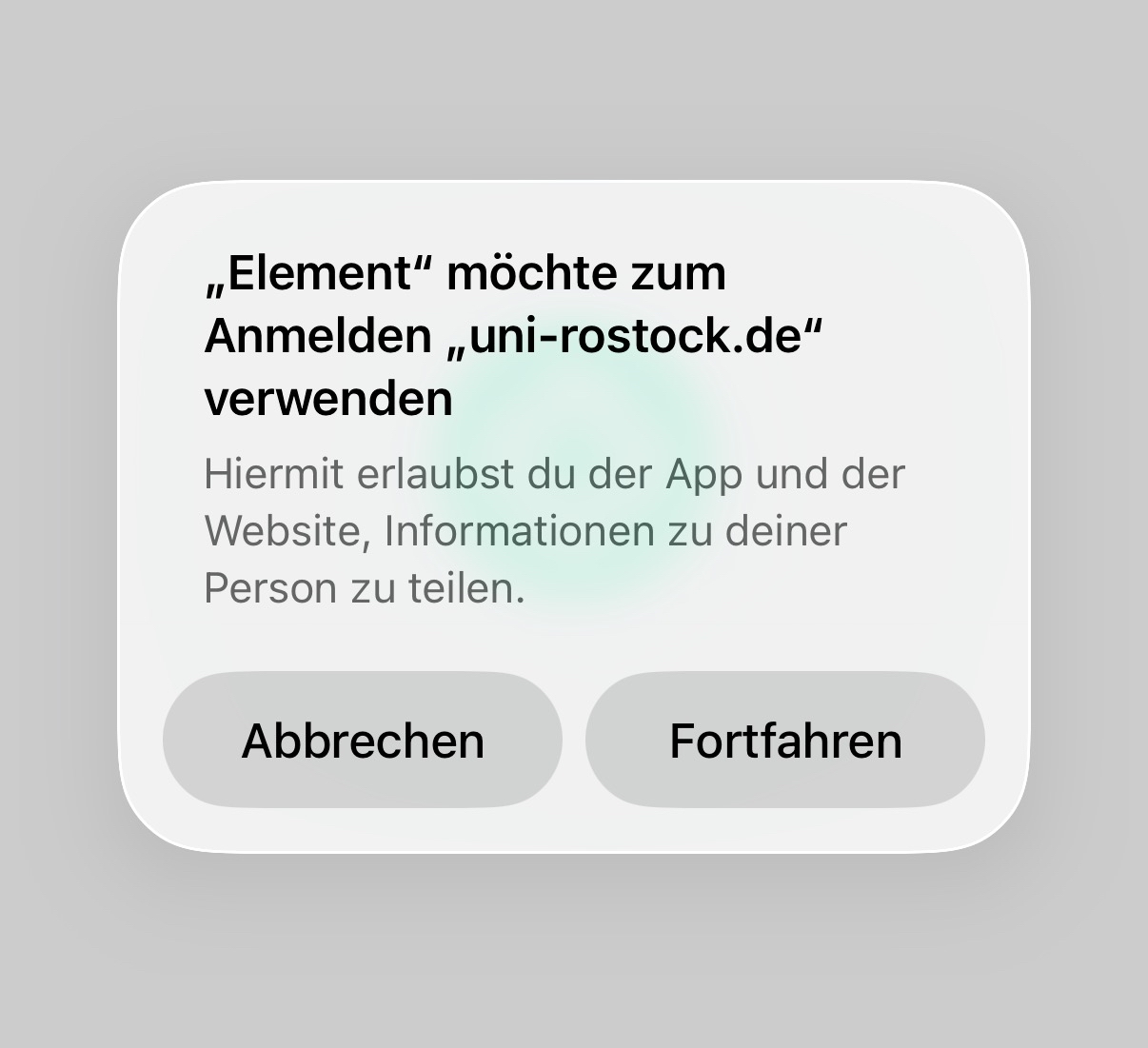
After changing the server URL, clicking the "Continue with SAML" button will display a note on iOS indicating where the login occurs. Then it redirects to the Shibboleth login page. There, log in as usual with your username and password, consent to the data transmission, and then log in to the chat by confirming with "Continue".
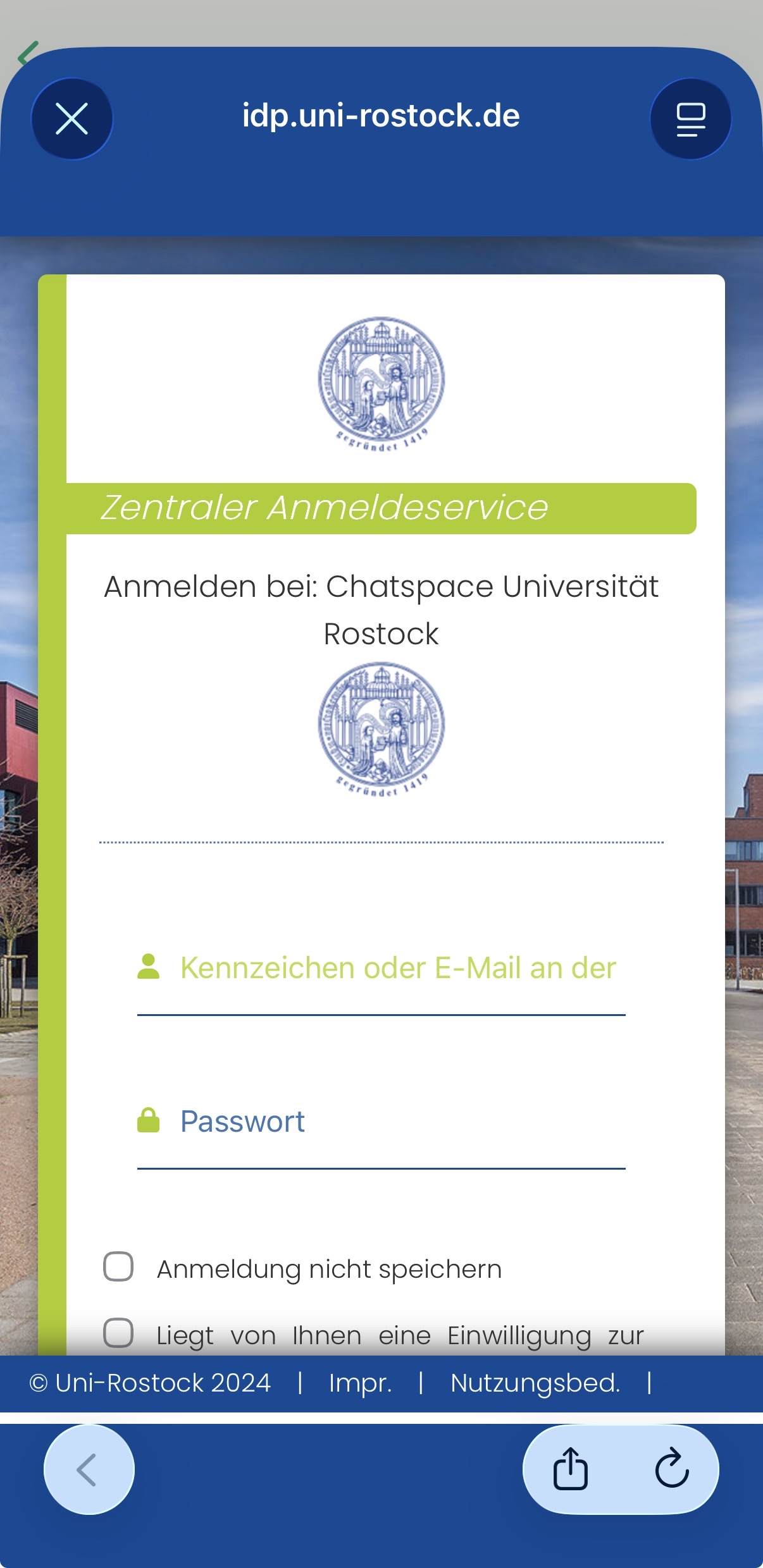
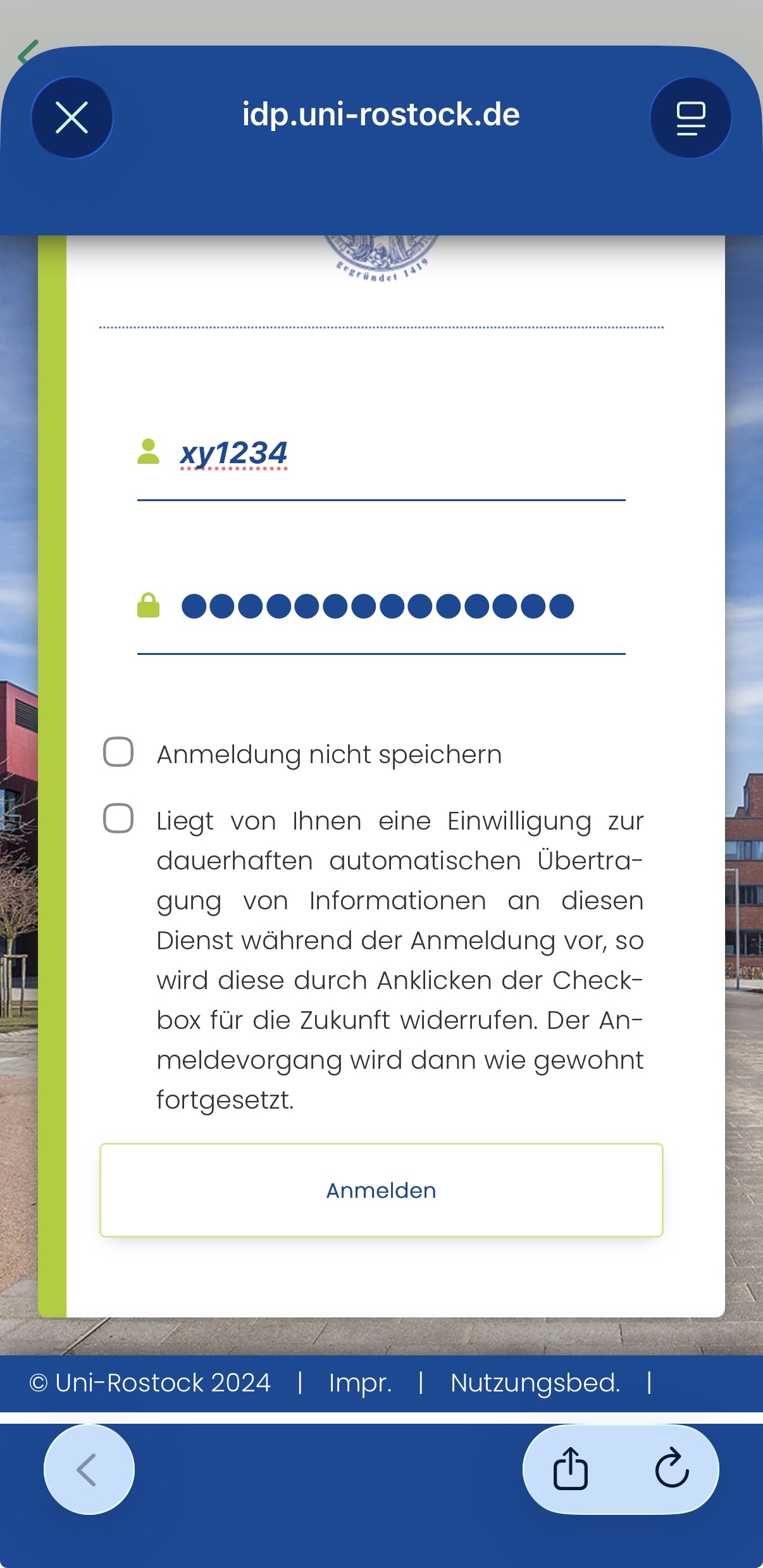
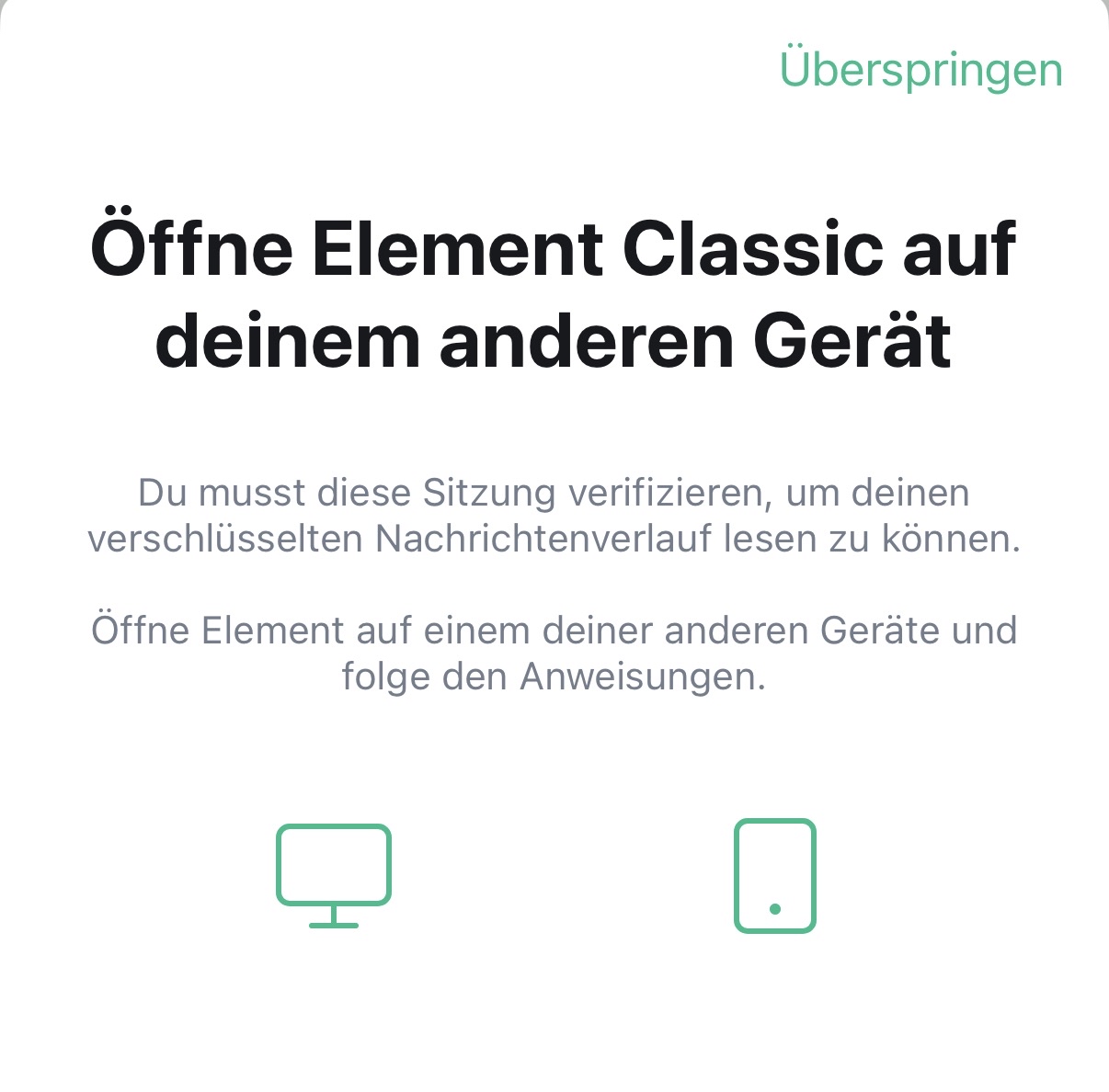
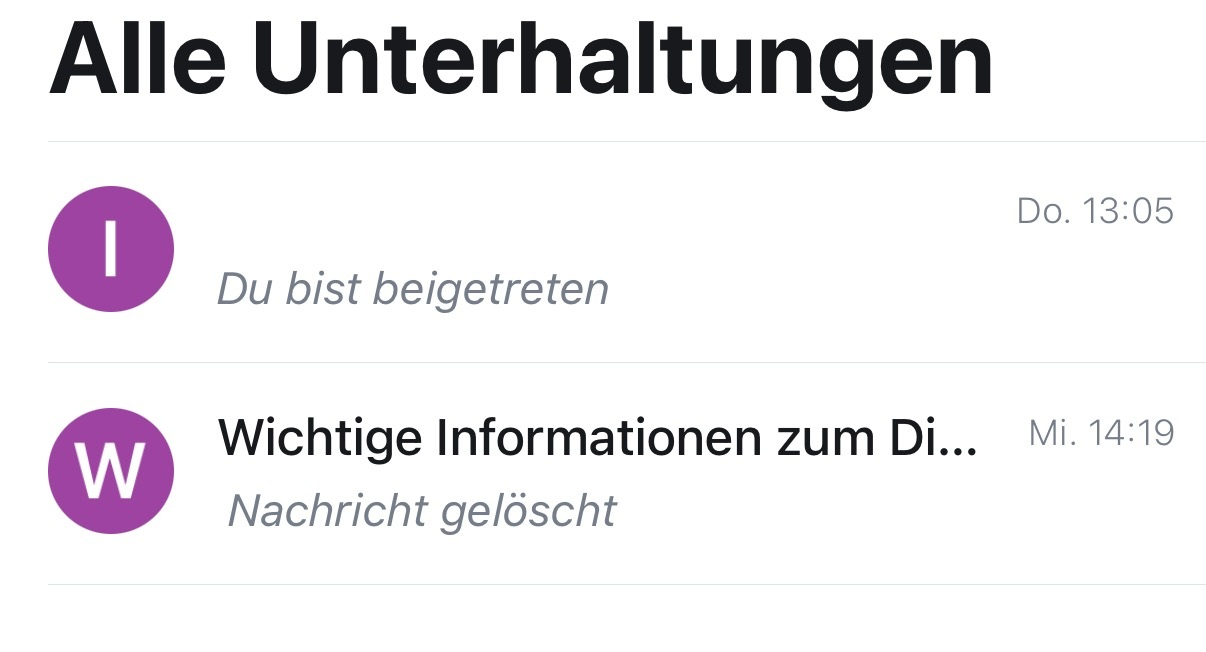
Then the session verification query occurs and the chats are displayed.