notifications
The chat serves as a medium for quick and easy short discussions, exchanging code snippets, creating quick polls in the workgroup, or for projects and daily work.
Nevertheless, it should not distract you and serve as a tool rather than disturb your daily work.
To achieve this, notifications can be sensibly adjusted.
global settings
profile > all settings > notifications
In the notification settings, you can turn notifications on/off and fine-tune them according to your preferences.
Your experiences may later show that some notifications are needed and when occasional checking is sufficient. You can adjust the settings at any time.
Note: If you want to receive group notifications as push notifications on a mobile device, in addition to the settings on the mobile device, you must once set the button for group conversations to "Loud" in the global notification settings on the web interface.
The default is "On". This way, you will only get the display on the screen of your mobile device but no push notification.
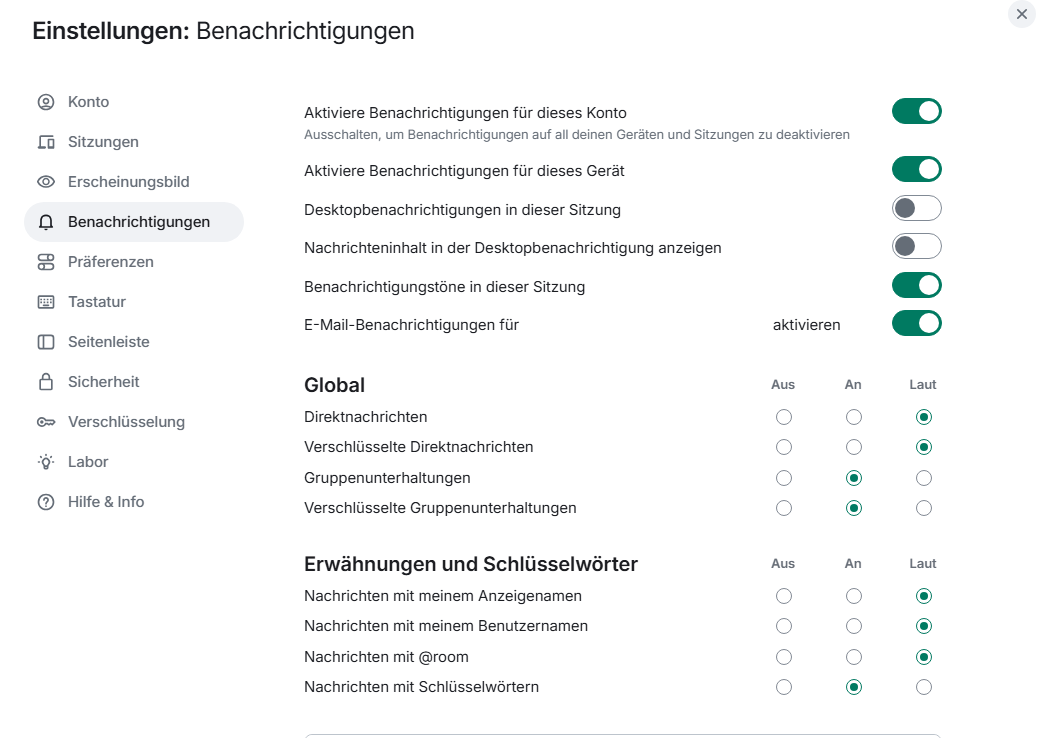
Here you also have the option to enable email notifications for your email address.
Please note that this setting only remains active as long as you are logged in on at least one device. If you log out from all devices, this setting will no longer be effective and must be set again.
notification settings on mobile devices
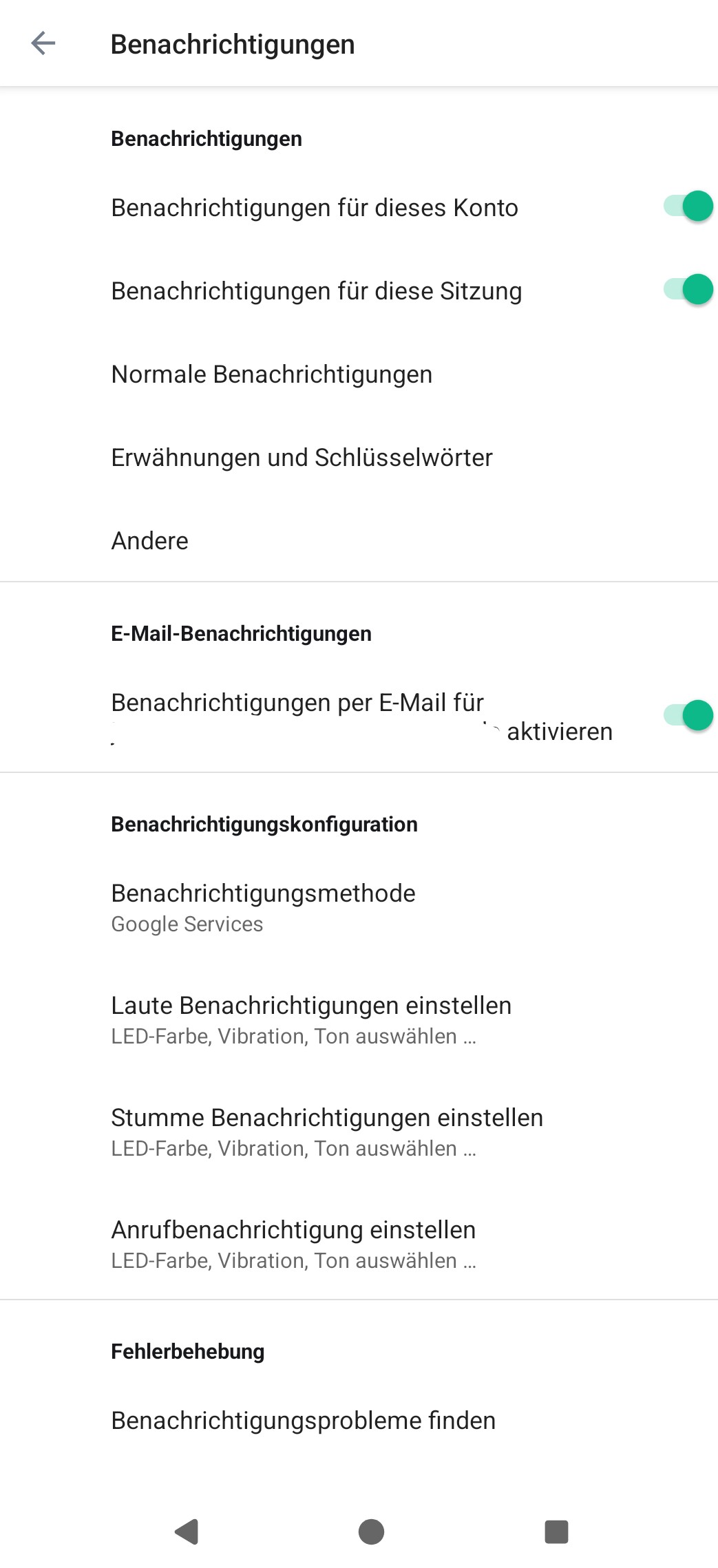
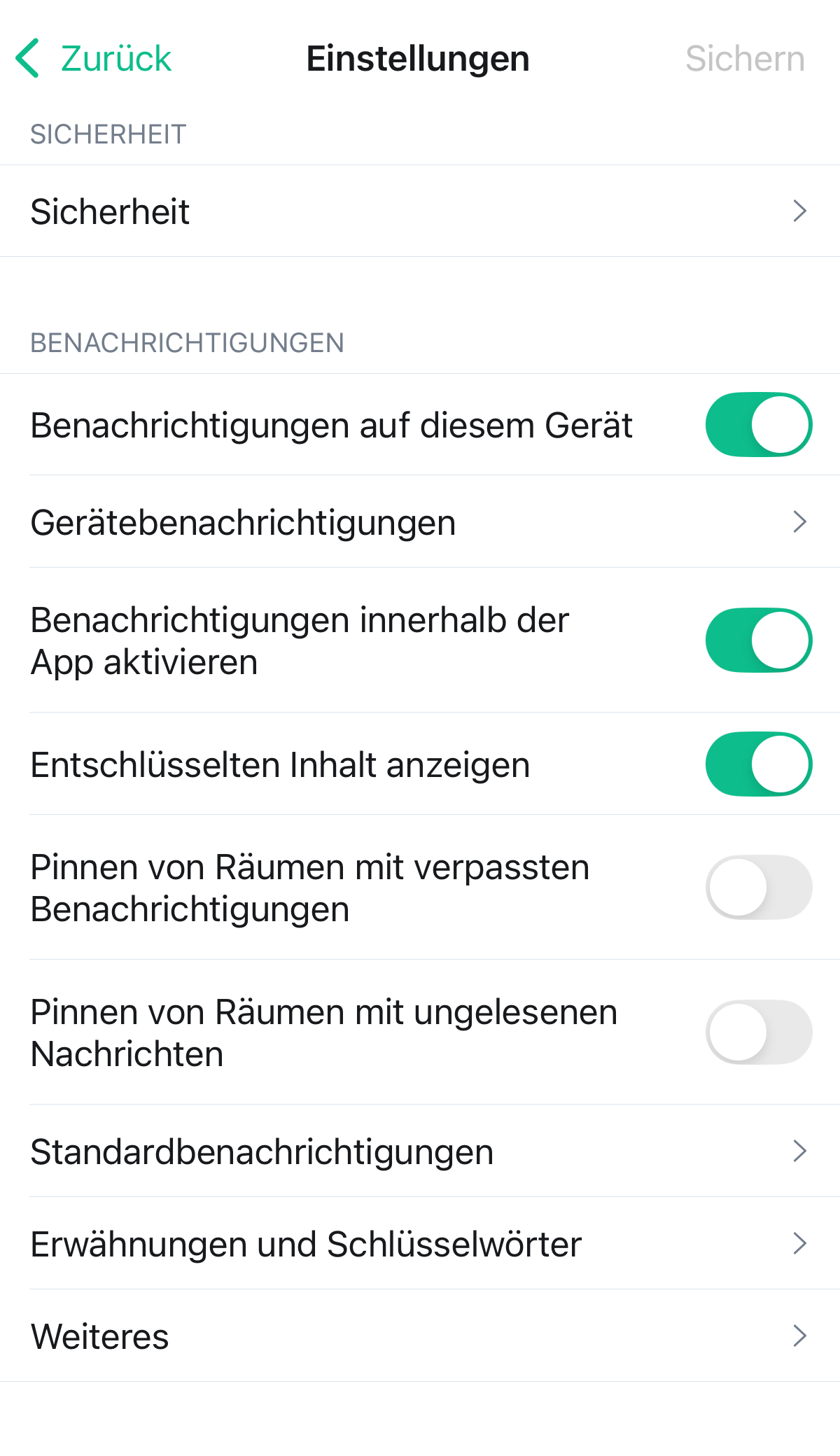
Additionally, notification settings can be adjusted on mobile devices.
Under Android, you will find a separate menu item for notifications, where you can configure both the notification settings and the behavior of notifications under Android.
Under iOS, you will find the notification settings in the general settings.
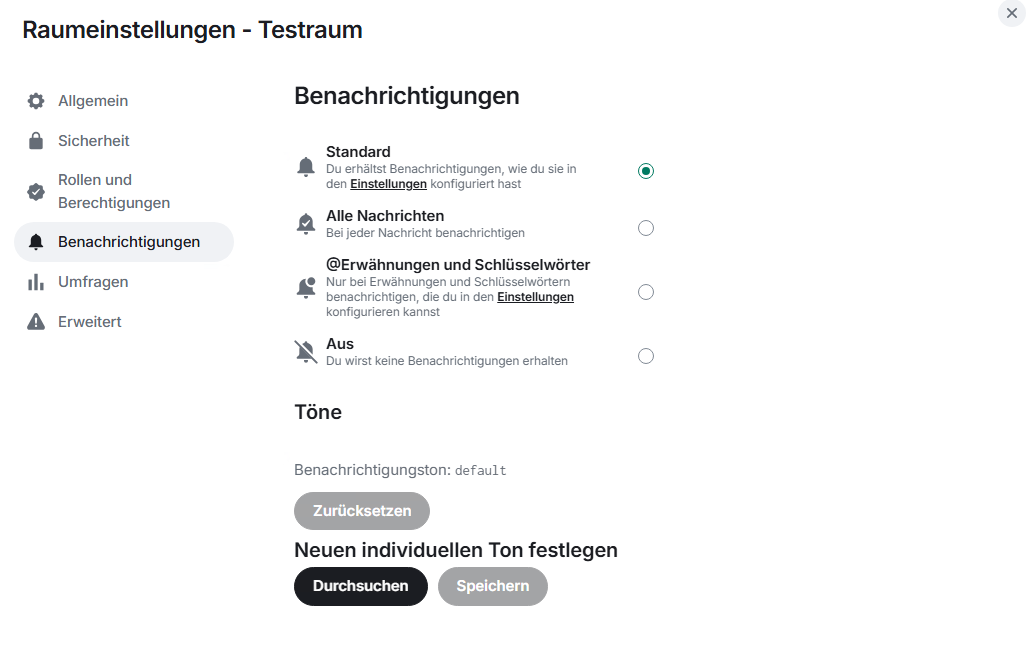
room notifications
Hovering the mouse over rooms in the room list reveals three dots on the right edge. Click on them to go to the settings and then to the Notifications tab.
Here you can configure notifications individually for each room.
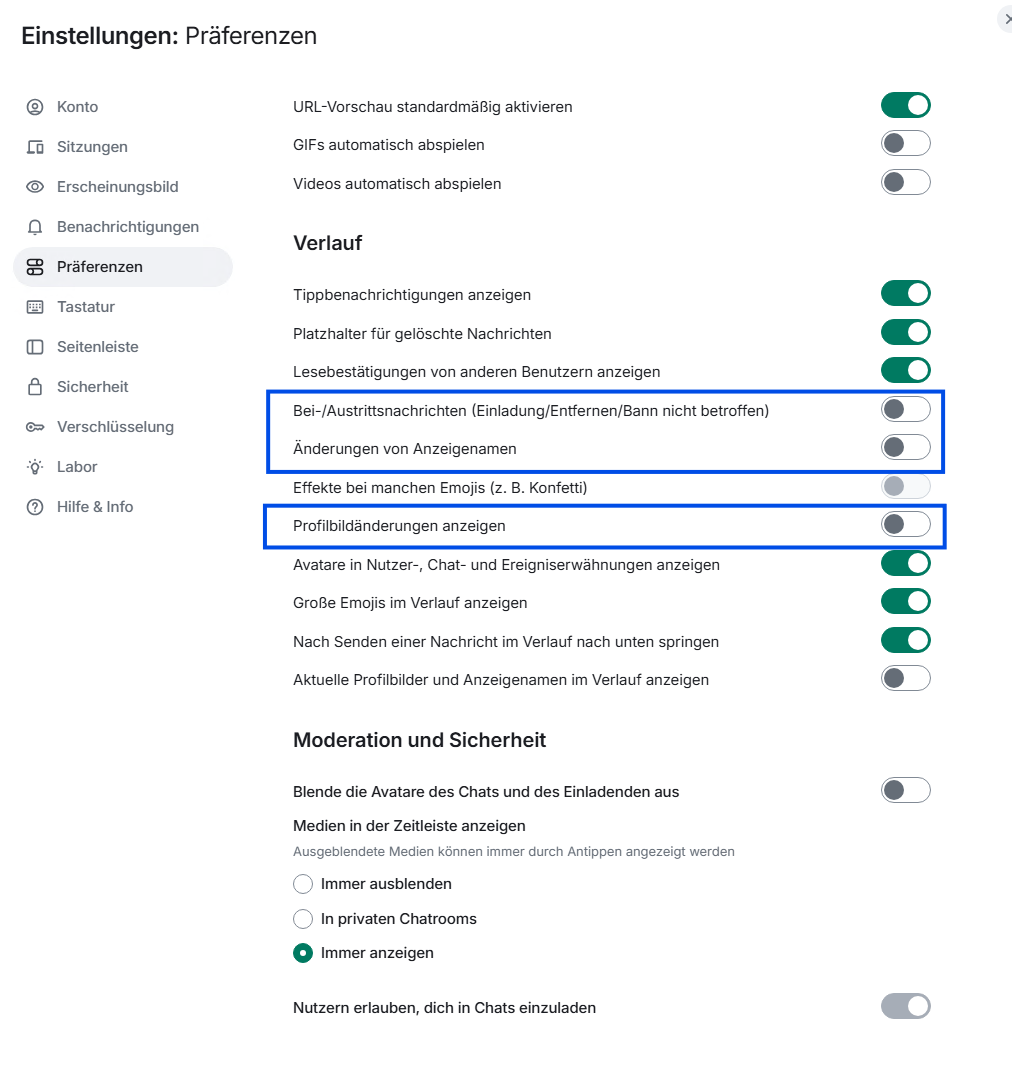
History Settings
By default, user entries and exits, profile picture changes, etc. are displayed in the chat rooms.
In large rooms, this can result in many changes that are distracting in the history.
We therefore recommend turning off these system notifications.
To do this, select your profile icon > All settings and switch to the “Preferences” tab.
There you will find the History section.
Use the slider to disable the following options:
Entry/exit messages (invitation/removal/ban not affected)
Display name changes
Show profile picture changes
You will then no longer receive such change notifications in the chats, and the chat history will be clearer.