User manual
The IT and Media Center (ITMZ) provides students and employees of the University of Rostock with a messaging service. This service enables communication in groups or one-on-one.
The chat service is based on Matrix, a free, open, secure, and decentralized protocol for real-time communication, accessible through the Element frontend. The chat service runs on university-owned servers.
Due to the federated structure of the system, communication is possible both within the university and across institutions with Matrix users from other organizations.
The service supports sending files, images, and videos. Access is provided through a web interface.
The recommended client for using the chat service is called Element and can be used on various systems and devices:
Element Web: The University of Rostock’s browser-based web app
Element Desktop: Download for Linux/Windows/Mac Note: Please make sure to select the "Desktop" version.
Element Mobile: Android, FDroid, or iOS
This is a complex chat software with a wide range of features. Please understand that this user guide only covers the basic functions.
First Steps
Login
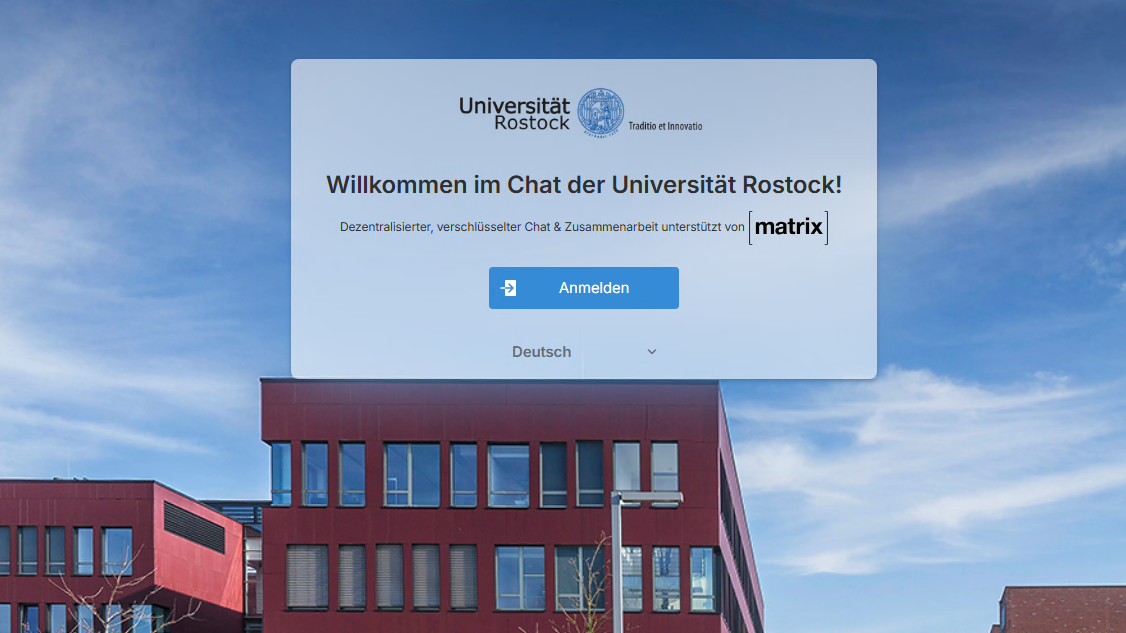
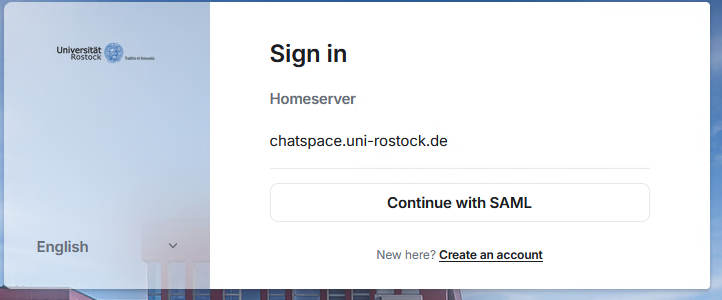
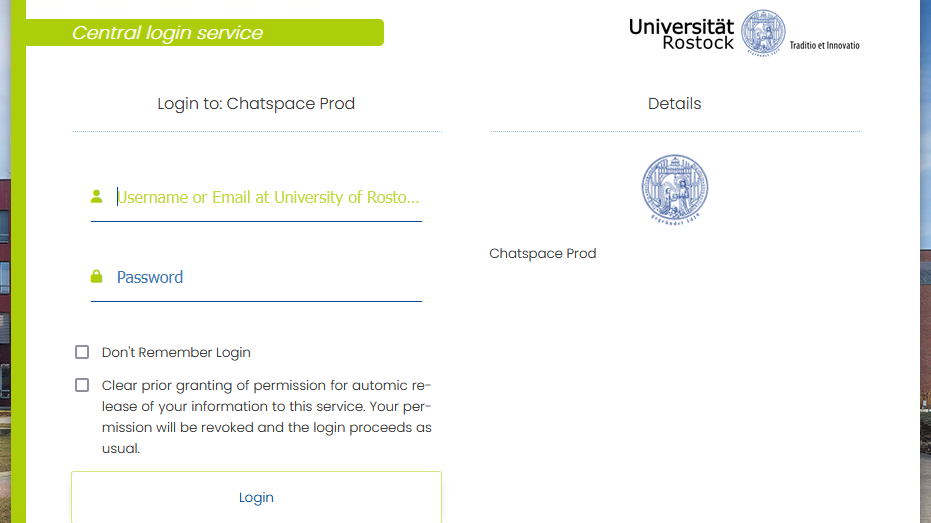
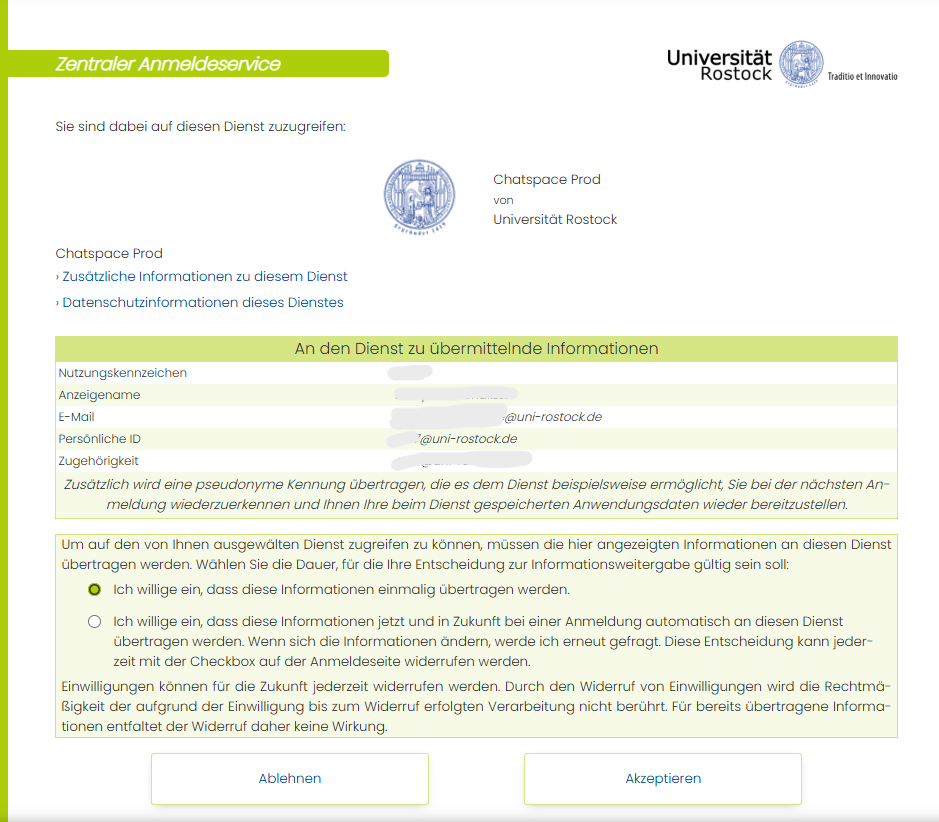
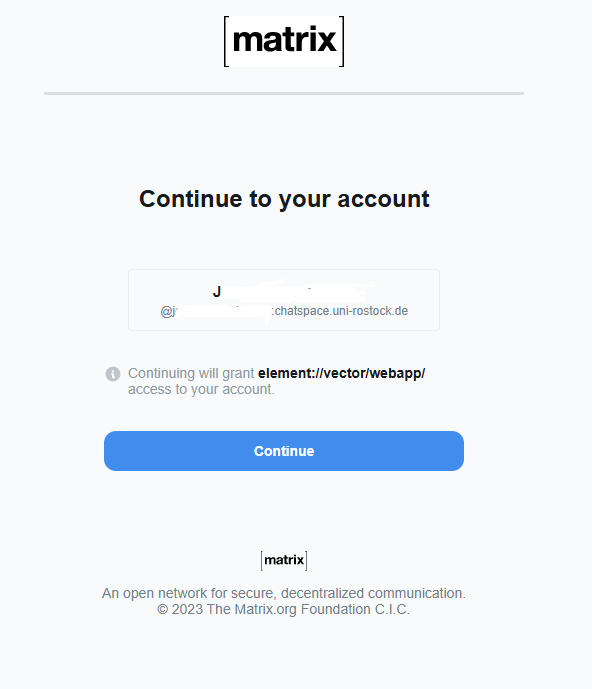
The login to the University of Rostock’s chat server is done via the web browser at chatspace.uni-rostock.de using the university login credentials (username and associated password) through the Shibboleth/SAML connection.
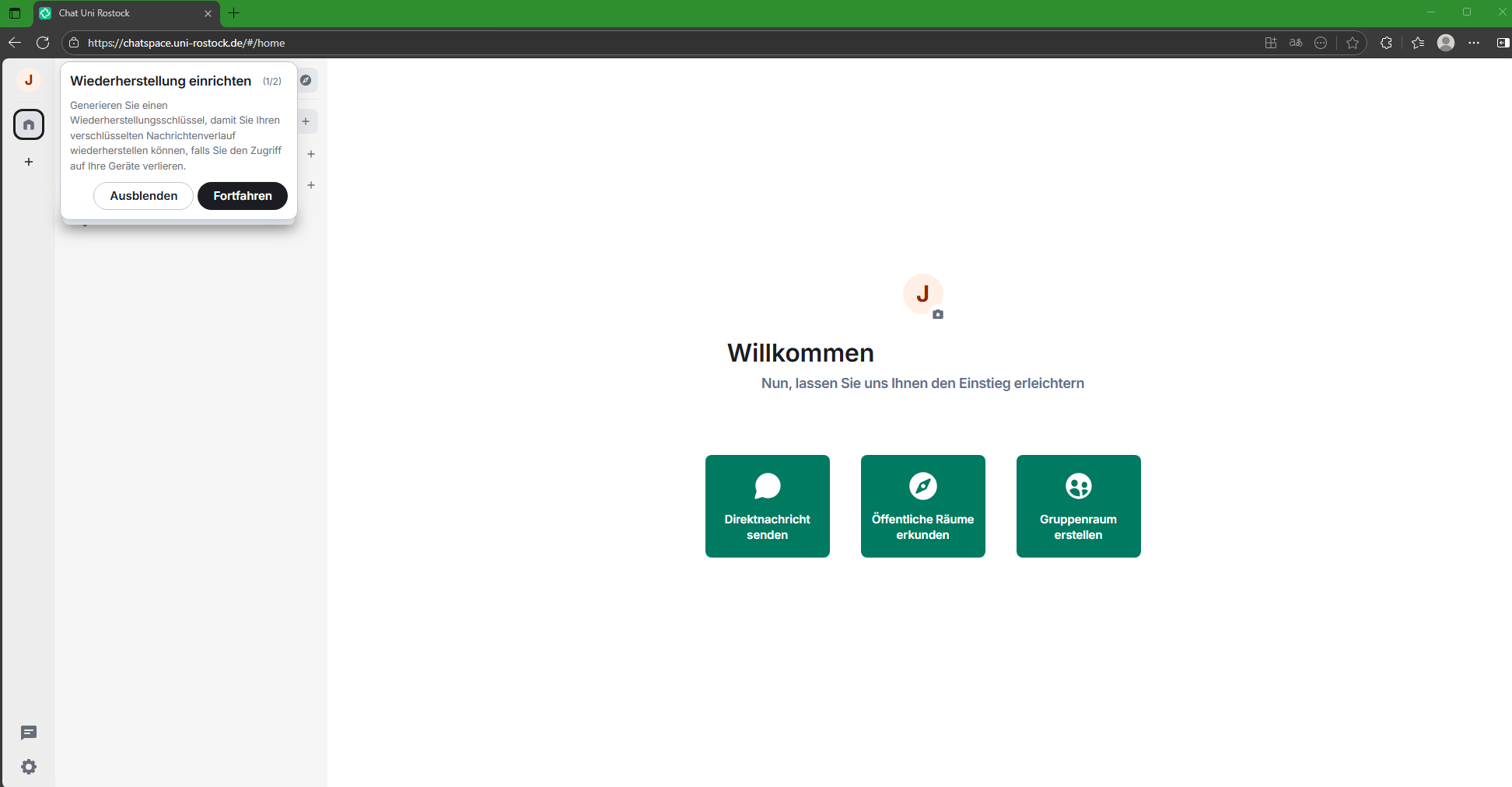
Set up key backup
Matrix not only encrypts the transport to and from the homeserver but also allows the use of end-to-end encryption. For this, cryptographic keys must be exchanged between all devices.
The numerous cryptographic keys are created by the client and stored on the respective device. If this happens in a web browser and it is accidentally closed, all encrypted content becomes unreadable.
To prevent this, a key backup on the University of Rostock's homeserver is recommended.
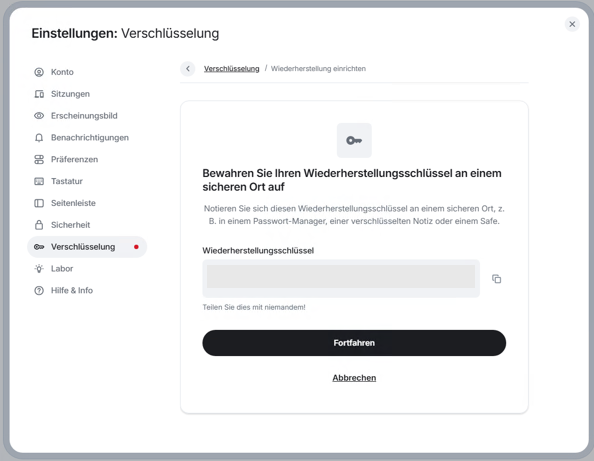
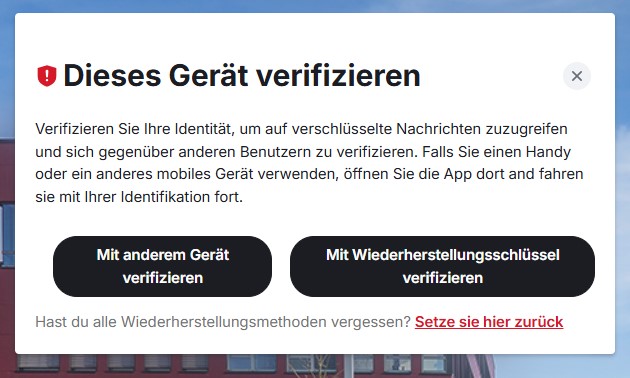
For secure and encrypted communication, a security key must be created in the Matrix session. After login, the system will prompt you at several points to verify your session and set up encryption.
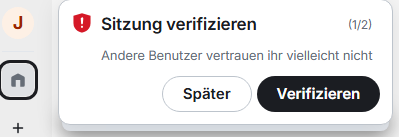
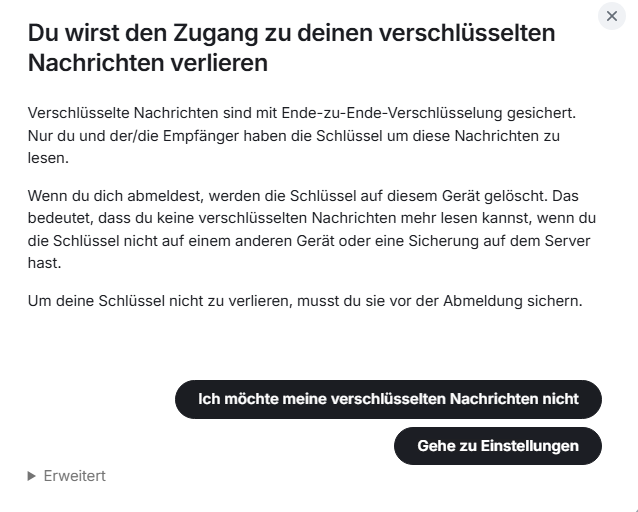
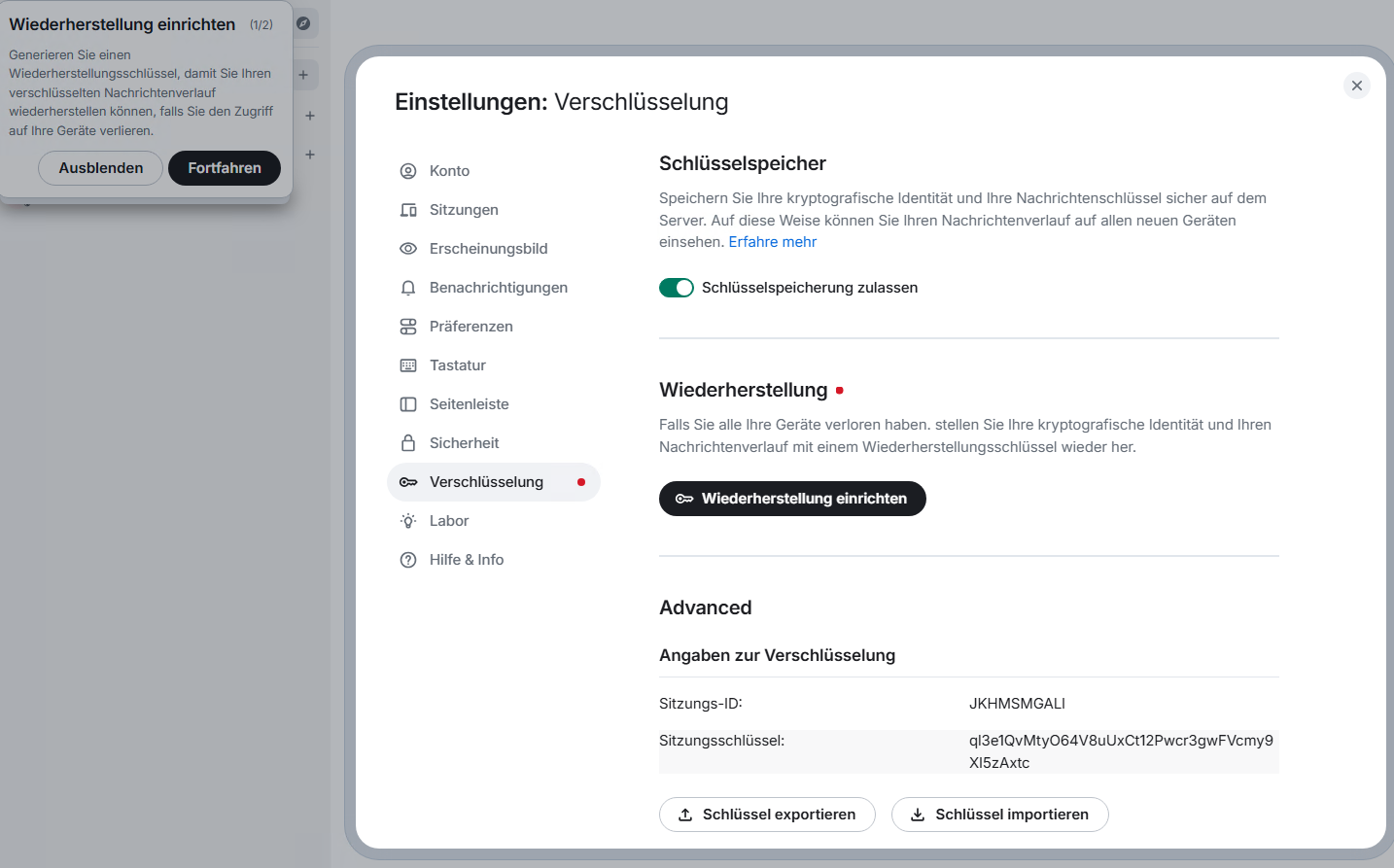
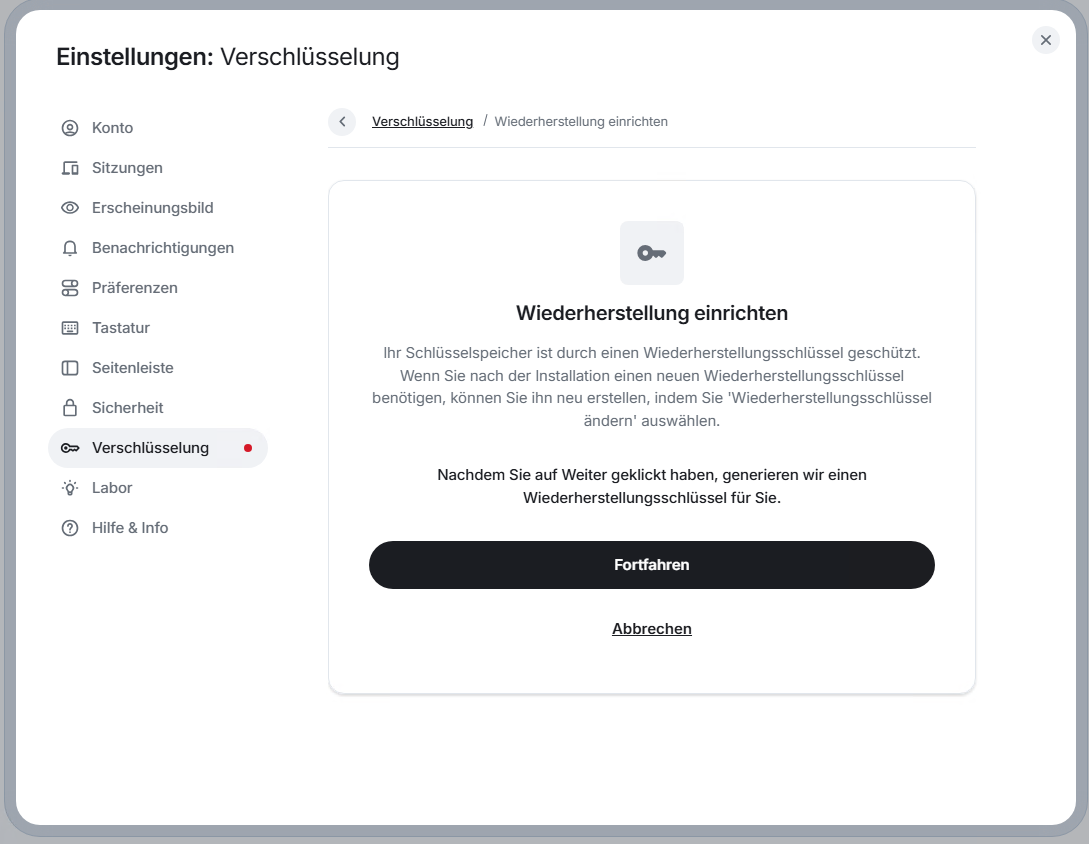
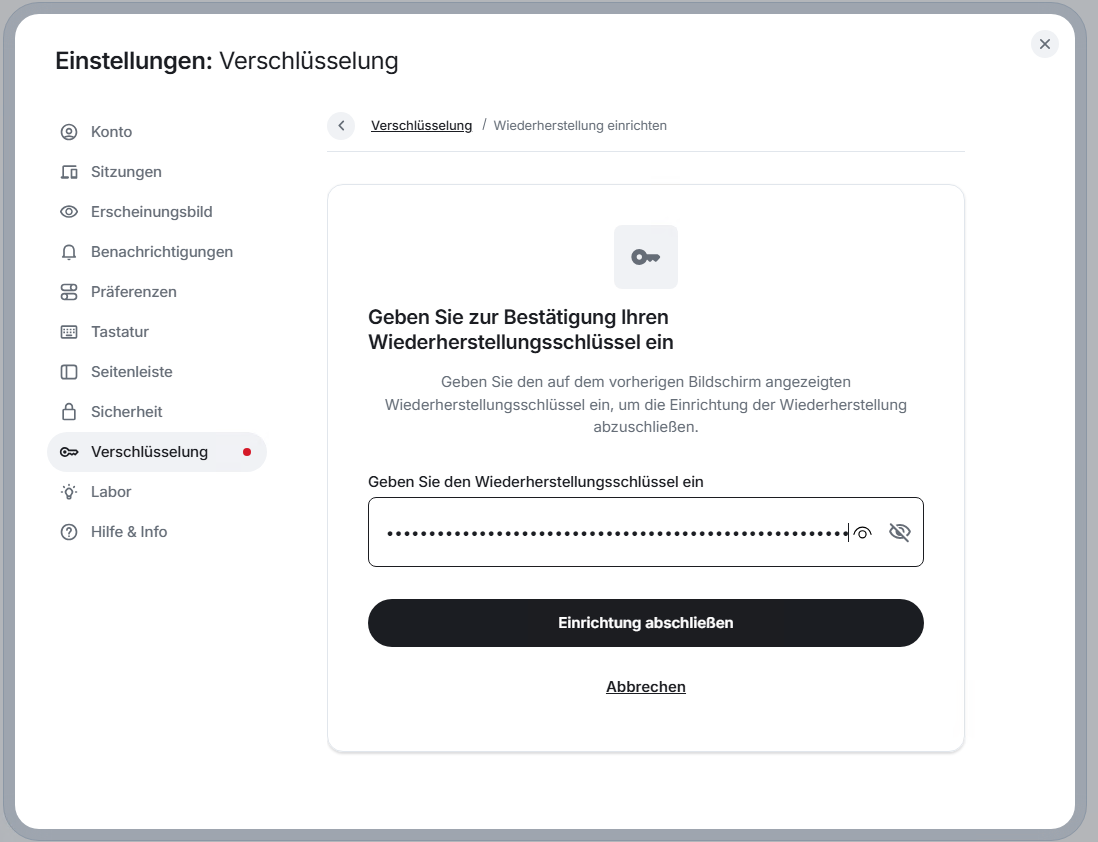
In the next step, the recovery key will be displayed to you. Please save it and keep it in a safe place (e.g., save as a .txt file AND print it).
Also, please copy it, as you will need it in the next step.
Never share this key with anyone, as another person could otherwise read your encrypted messages in plain text.